

If your organization uses baby bottles to collect donations, you can now create an online Baby Bottle Campaign with Peer-to-Peer! Your supporters (churches and individuals) can create their own online baby bottle fundraising Pages and raise money for your organization (or they could have the option to donate and help fill your organization’s online baby bottle on a single campaign page). When participants create their own fundraising page to “fill their bottle”, they can raise funds online and offline from friends and family and watch their online baby bottle “fill up” with donations.
Here's how to create an online Baby Bottle Campaign with Peer-to-Peer:
First, decide how you'd like to run your Baby Bottle Campaign.
There are four different ways to run a Baby Bottle Campaign, listed below. Options 1, 2, and 3 would use regular Peer-to-Peer, while Option 4 would use Crowdfunding.
(most common) You can allow churches to have their own baby bottle fundraising pages to fill up with donations from the people who attend the church and other donors.
Churches register and share their pages.
A church representative may be allowed to register the church and manage the church's fundraising page, or
You can manually register churches on the backend and either manage their fundraising page for them, or allow the church to manage it once it's been created. In this case, you may want to disable the option on the Campaign Web Page for anyone to register as a participant (this article has more information).
Donors can select a church to sponsor.
There are no individual fundraisers and no teams.
You can allow individuals to have their own baby bottle fundraising pages to fill up with donations from friends and family. This is a regular Peer-to-Peer campaign where:
Individuals register and share their pages.
Donors can select an individual to sponsor.
Individuals can create and join teams (there are no team pages; donations are made on the pages of individuals).
You can allow both individuals and churches to have their own baby bottle fundraising pages.
Individuals and churches register and share their pages.
Donors can select an individual or a church to sponsor.
Teams are optional.
A church's fundraising page and the fundraising pages of the individuals who attend that church could all be listed in the same Team.
Individuals who do not attend a church could also have an individual fundraising page that is not listed on a Team.
The Team Tab and Team Leaderboard will display team totals for donations given to individual fundraising pages or church fundraising pages on the team.
You can have a single giving page for donors to give money toward your organization's collective baby bottle.
Second, create your campaign:
Log into your FundEasy account, click the My Events dropdown in the top left corner, and click the green Add New Event button.
Note: If you're not a current FundEasy customer, go to www.fundeasy.com and click the Sign Up button in the top right corner to create an account.

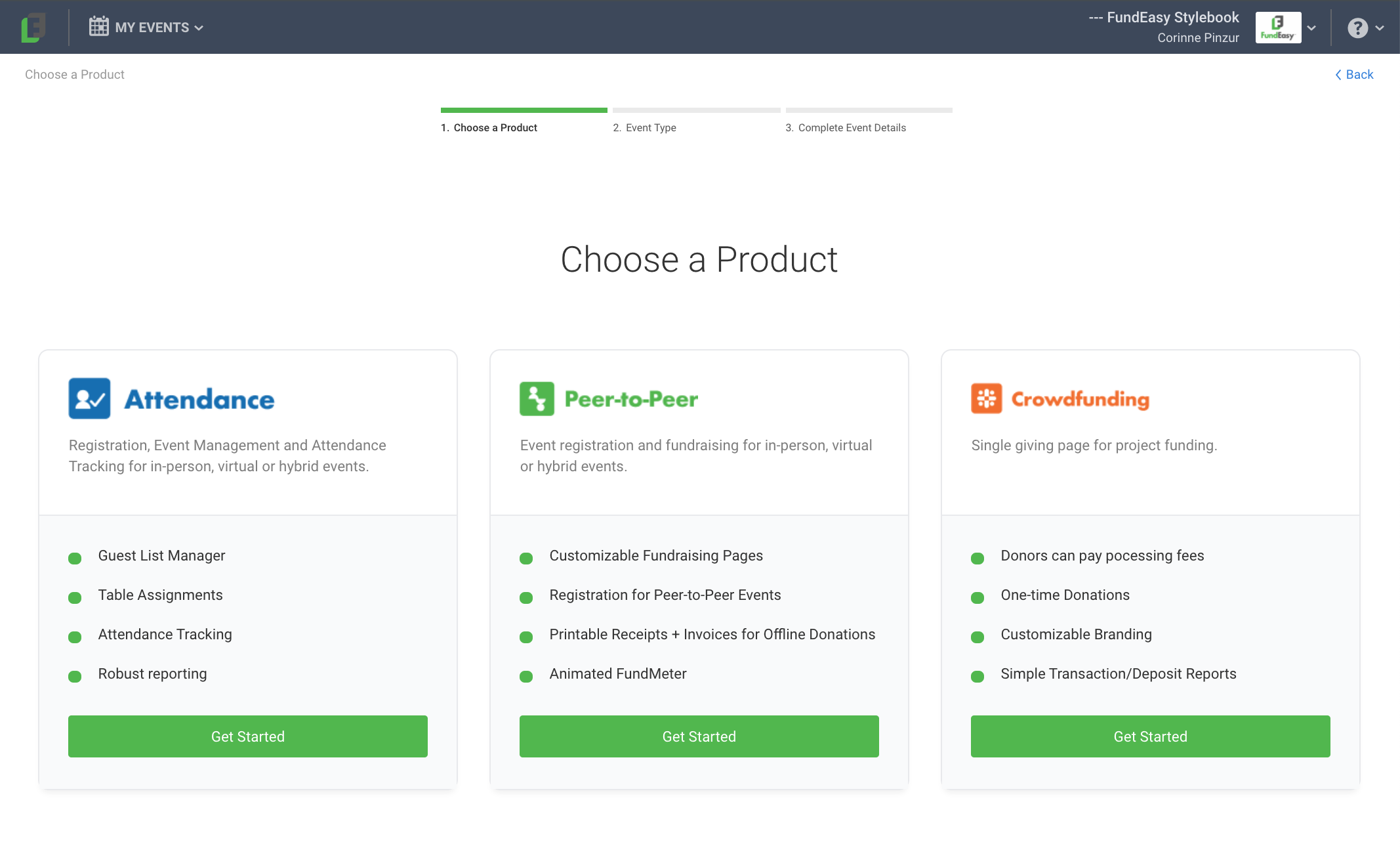
On the Choose a Product page, click the Get Started button for the Peer-to-Peer product if you'd like churches and/or individuals to have their own baby bottle fundraising pages (see options 1, 2, and 3, above).
Or, if you want a single giving page for donors to give money toward your organization's online baby bottle (see option 4, above), choose the Crowdfunding product. If you choose Crowdfunding, continue setup of your Crowdfunding campaign by following the instructions here.
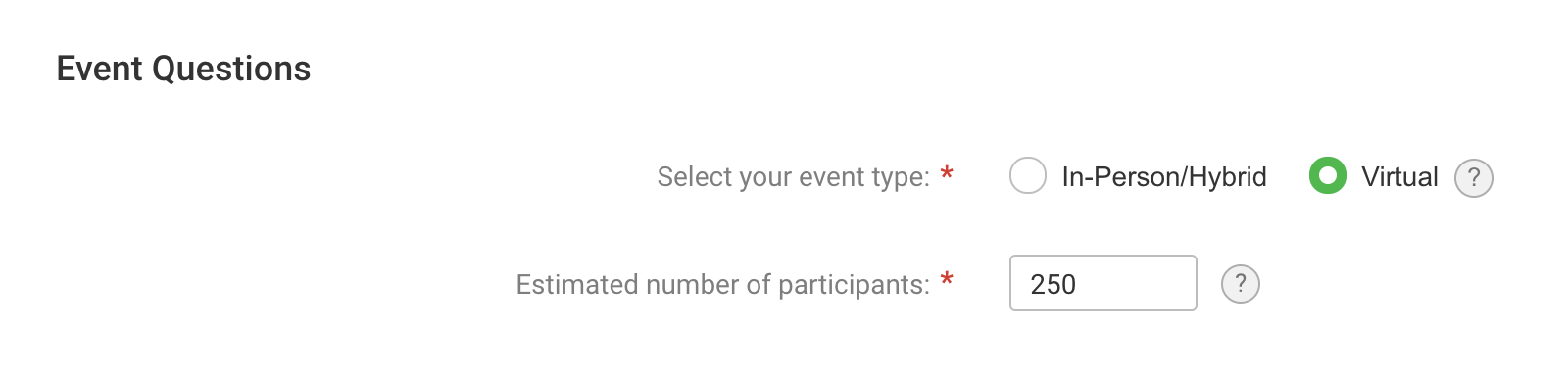
On the Event Type page, choose the Virtual event type, enter your estimated number of participants, and click Continue.
On the Create Event page, fill out the initial details for the campaign:
Enter a Campaign Title.
Select the timezone for your location.
Choose when the campaign will end (Campaign Ends field).
You can fill out the Promotional Info and Organization Info sections now or after you create the event.
Enter the Campaign Coordinator information.
Choose the terms you will use for participants (such as, "Fundraiser") and donors (such as, "Donor").
Enter a fundraising goal for the campaign as a whole as well as a default goal for each participant's fundraising page (their online baby bottle).
Choose your processor account for processing online donations or create a new one. Did you know? Even if you have an existing Stripe account, Stripe recommends that you set up a new Stripe account to keep this event's reporting separate from other events.
Click Create Event at the bottom of the page.
Third, click on Campaign Setup on the left and walk through the steps to setup your campaign:
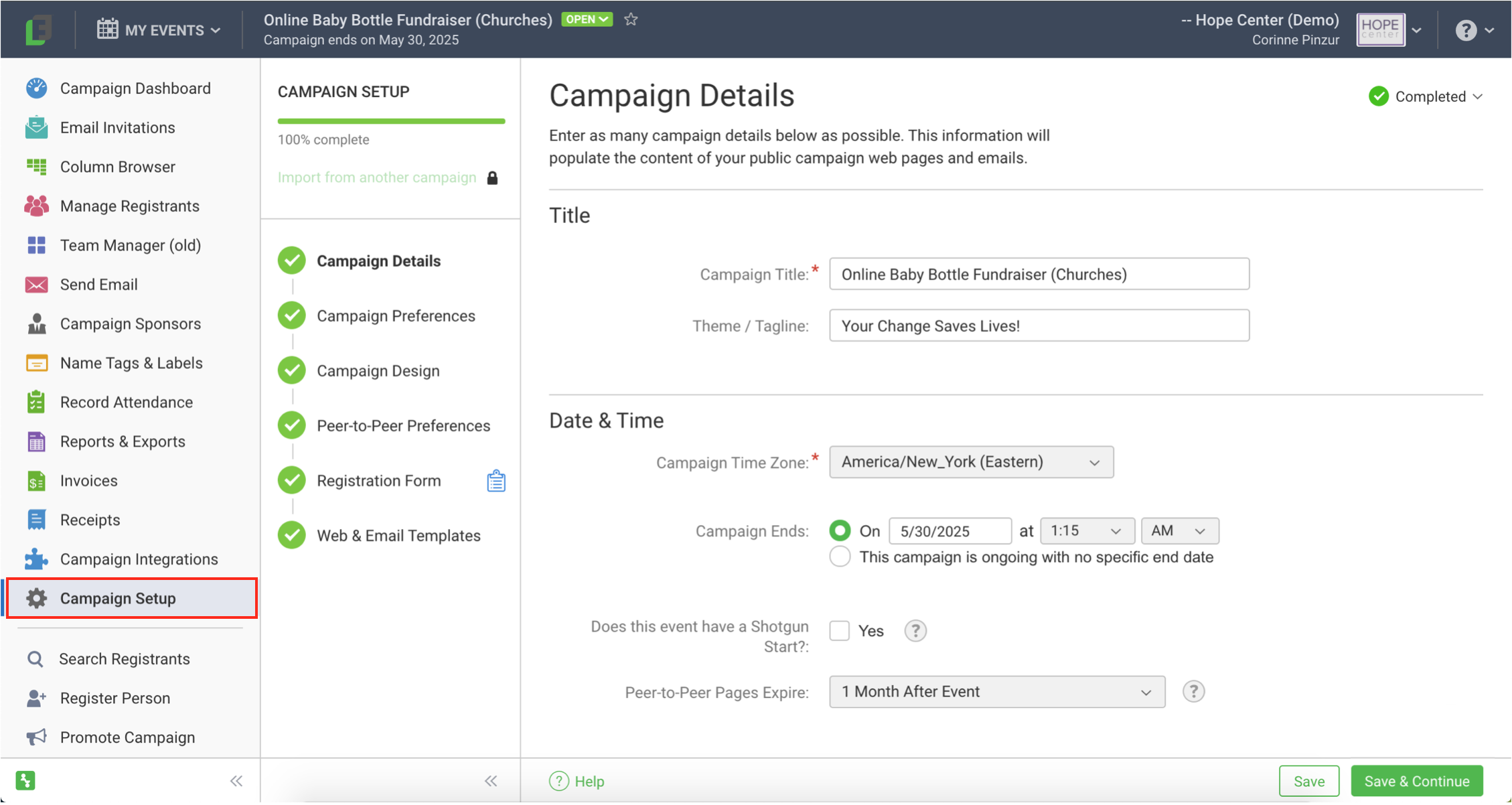
Campaign Details
You filled out some of the Campaign Details while you were creating the event. You can fill in more details here and may want to consider these:Does your event have a Shotgun Start? If you'd like your campaign to start on a specific date, check this box, select the "On" option for the Fundraising Start Date for All Participants, and choose a date and time. If you choose a start date, your participants can register for the event and set up their fundraising pages when the event is set up and open to the public, but their donors will not be able to make a donation until the start date.
Otherwise, choose the "Anytime" option for the Fundraising Start Date for All Participants if you want your participants to be able to start raising funds as soon as the campaign is set up and open to the public and they register to the event.Add a Campaign Description to tell participants and donors more about the campaign, such as what you're raising money for.
Add a Public Organization Description to tell participants and donors about your organization.
Add an Organization Federal Tax ID so that online donors will receive a tax receipt email.
This
has more information about Campaign Details.
Campaign Preferences
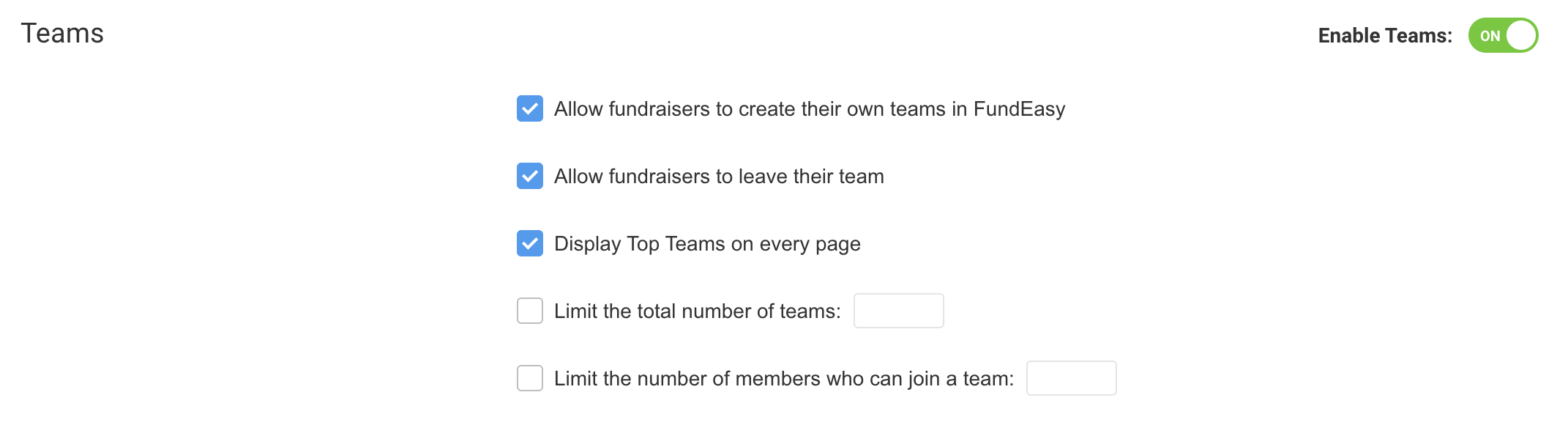
You can choose a variety of different preferences for the functionality of your campaign.For campaign models that allow for teams, you can enable them here. Enabling this setting allows churches/individuals to create and join teams when they register, or from the My Team tab on their fundraising page.
This
has more information about Campaign Preferences, including Teams.
Campaign Design
You can upload a banner and mobile banner in Campaign Design. Find more information in this article.Peer-to-Peer Preferences
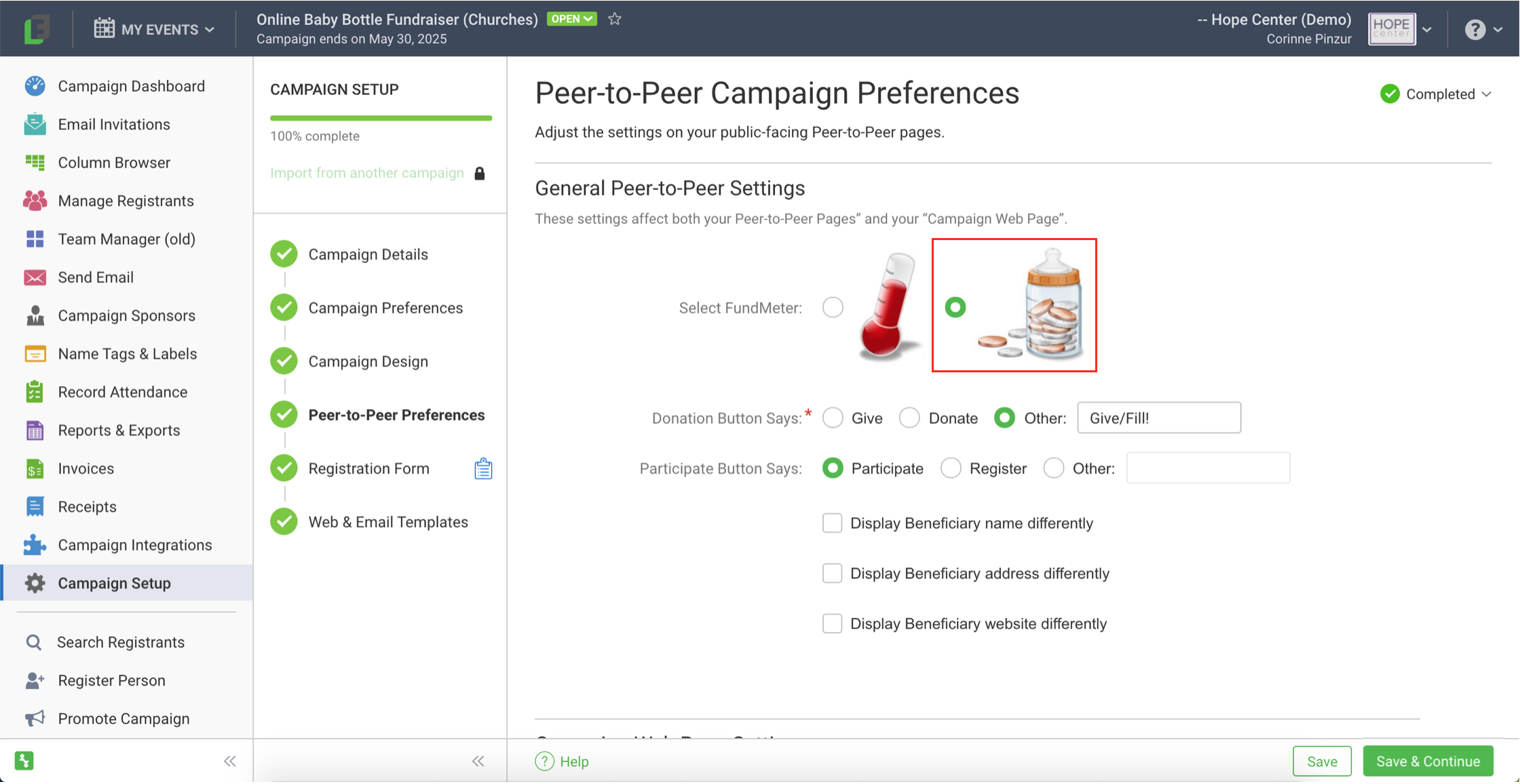
You can adjust the settings on public-facing web pages here. You'll want to select the baby bottle FundMeter to appear on your Campaign Web Page and each fundraising page.
This article has more information about Peer-to-Peer Preferences.

Registration Form
Your campaign will come with a default registration form, but changes can be made depending on your needs.If only churches will have baby bottle fundraising pages, the registration form will need to be modified to include a field for the church's name. Other fields, like contact info, could be removed to make the form simpler for your church representatives to register.
If only individuals will have baby bottle fundraising pages, the default form may work well for you.
If both individuals and churches will have baby bottle fundraising pages, the registration form will need to be modified to include a field for the church's name. Other changes can also be made if desired.
For campaign models that allow for teams, you'll want to make sure that the team field is included on the registration form.
This
has more information about editing the registration form. If you need help making adjustments to the form, contact the Support team!
Web & Email Templates
You can preview and edit the campaign web pages and emails that registrants and donors see and interact with. This article has more information about the various templates.
More Resources
Check out this blog article for tips on managing a successful online Baby Bottle Campaign.