

This article covers Peer-to-Peer Event Preferences. For information on Attendance Event Preferences, see this article.
Registration
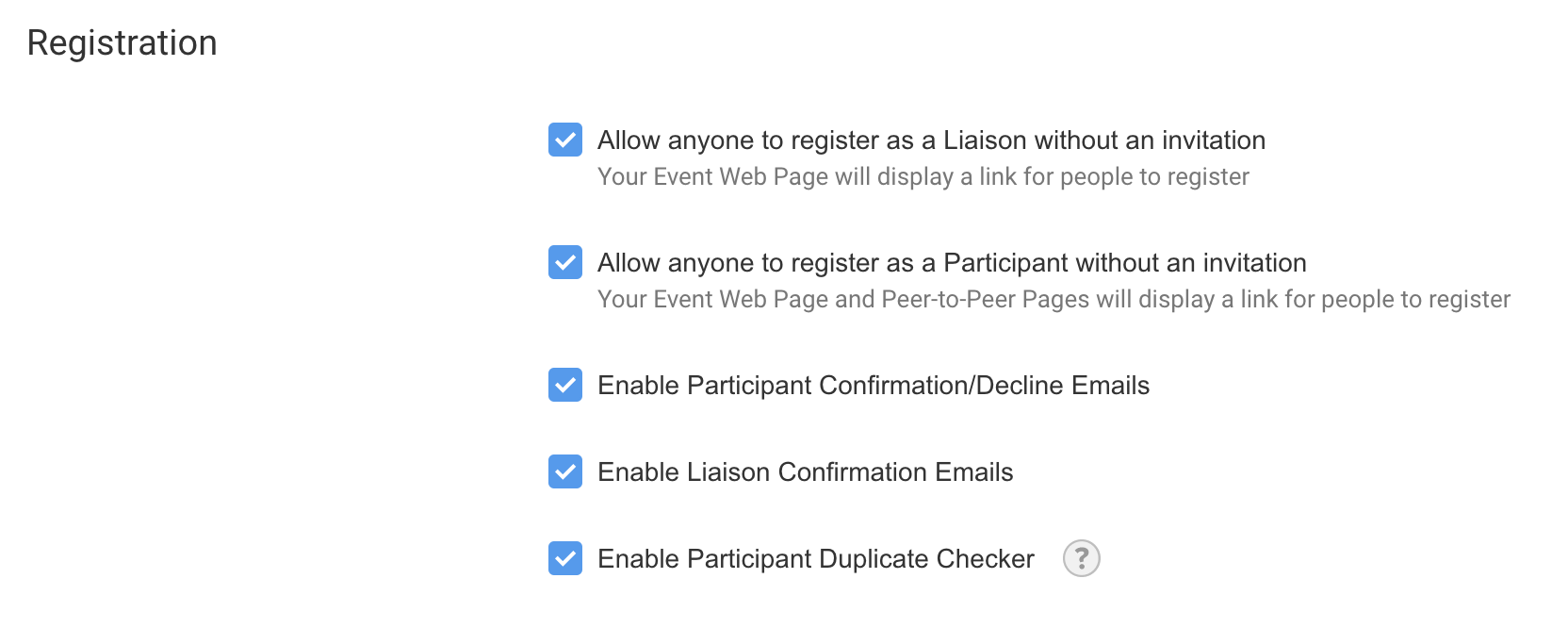
Allow anyone to register as a Liaison without an invitation (optional). If you have Liaisons enabled in this event, you'll have an option for Liaisons to register from the Event Web Page. When they click the Participant button, they will see the option to register as a Liaison or a Participant. Liaisons can continue to register as a Participant, if they choose, after they complete the Liaison form.
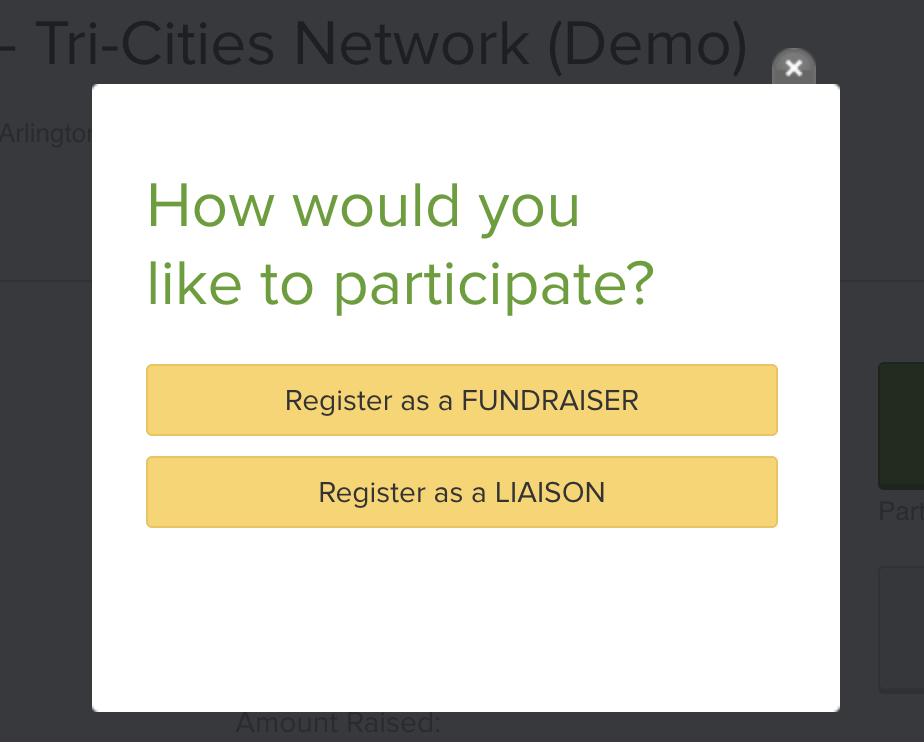
Allow anyone to register without an invitation - (enabled by default) adds the Participate button to your Event Web Page.
Enable Participant Confirmation Emails - (enabled by default). This is the email your participants receive after they complete their registration.
Enable Liaison Confirmation Emails - if Liaisons are enabled in this event, this option is enabled by default. This is the email your liaisons receive after they complete their registration.
Enable Participant Duplicate Checker for admin users (enabled by default). Admins registering participants from the admin side see the duplicate checker when registering participants who have used Peer-to-Peer in the past. Participants will not see the duplicate checker.
Notifications

Notify the Event Coordinator by email when someone registers as a Participant (disabled by default)
Send a weekly summary email of page stats to Participants (enabled by default)
Payment Processing
Stripe offers the ability to have donors pay the processing fees for their gifts made through your Stripe account.
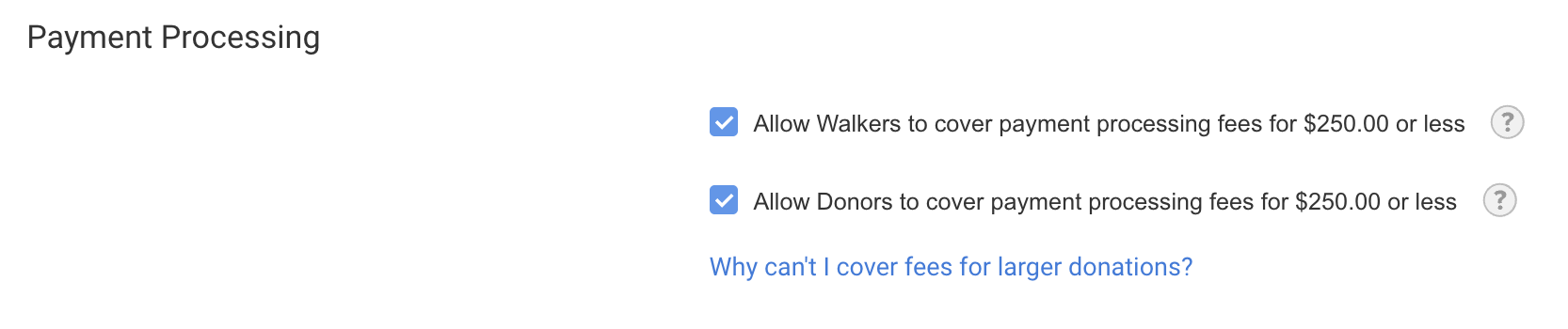
By default only donations and fees up to $250 can be covered. For more information on why, please see this article. If you would like to change this limit, please contact support.
When this feature is enabled, we'll add a checkbox to your payment form that asks donors or registrants if they would like to cover the fees. If they agree, the amount is added to their total.
For more information on Stripe Processing fees, please see this article.
Teams
Peer-to-Peer has a powerful set of team management features that you can enable for your event.
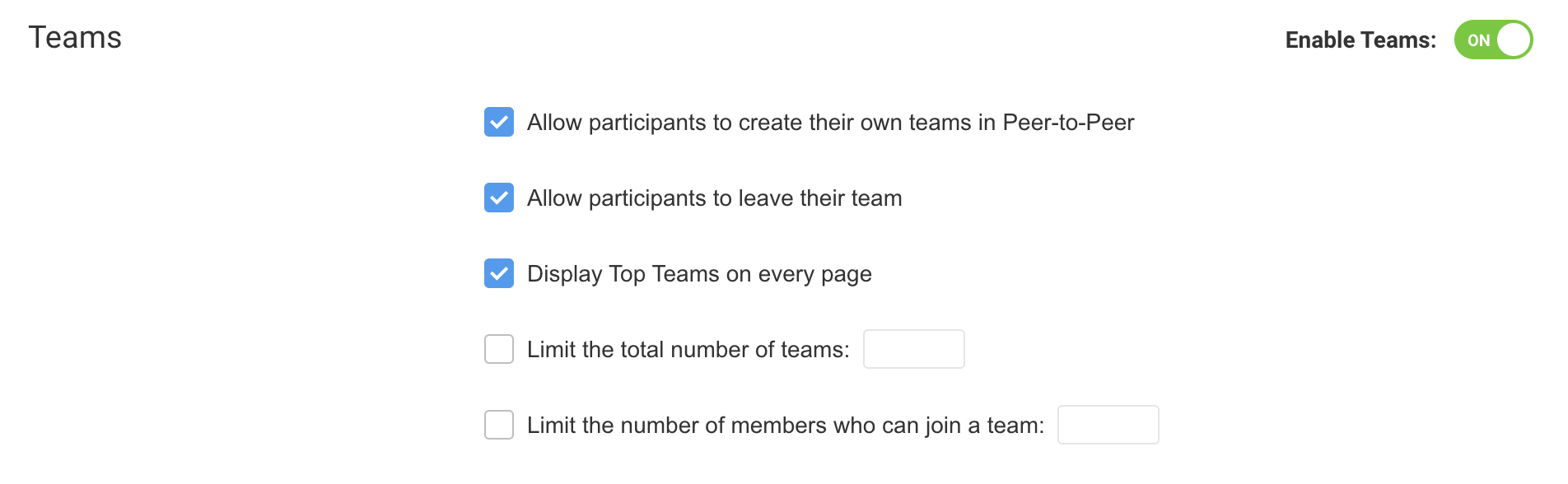
When you enable teams, you'll see these settings:
Allow participants to create their own teams in Peer-to-Peer either from the Registration Form or from the team tab on their fundraising page. Note: there is no team page.
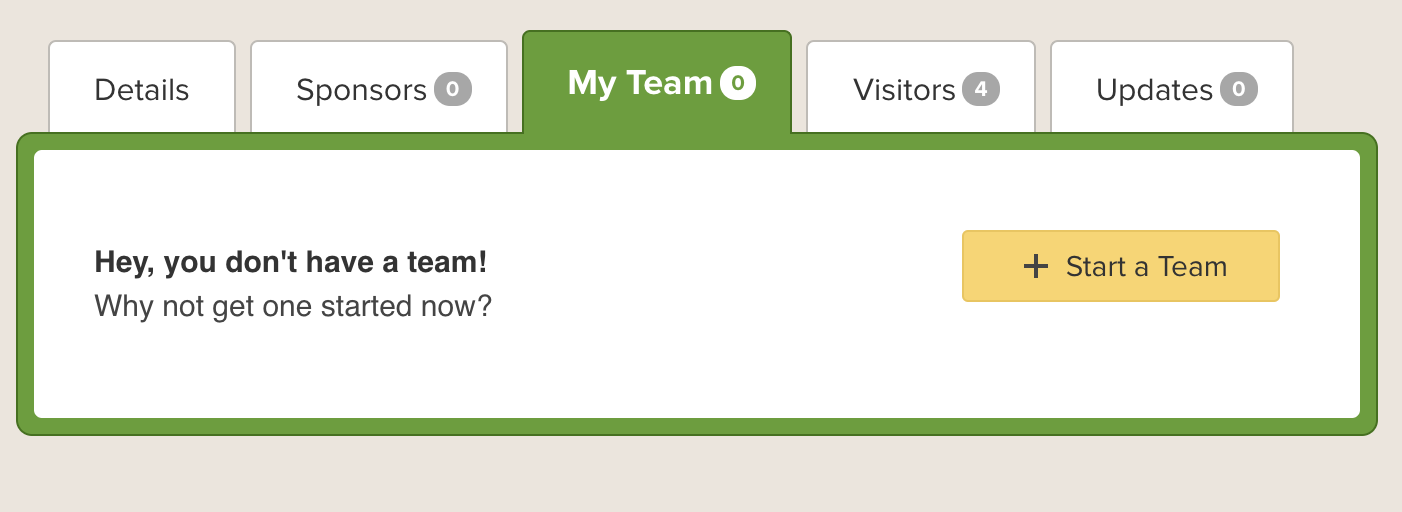
Allow participants to leave their team from the team tab on their page
Display Top Teams on every page
Limit the total number of teams in the event
Limit the number of members who can join a team
Learn more about managing your Teams and Captains here.