General Peer-to-Peer Settings
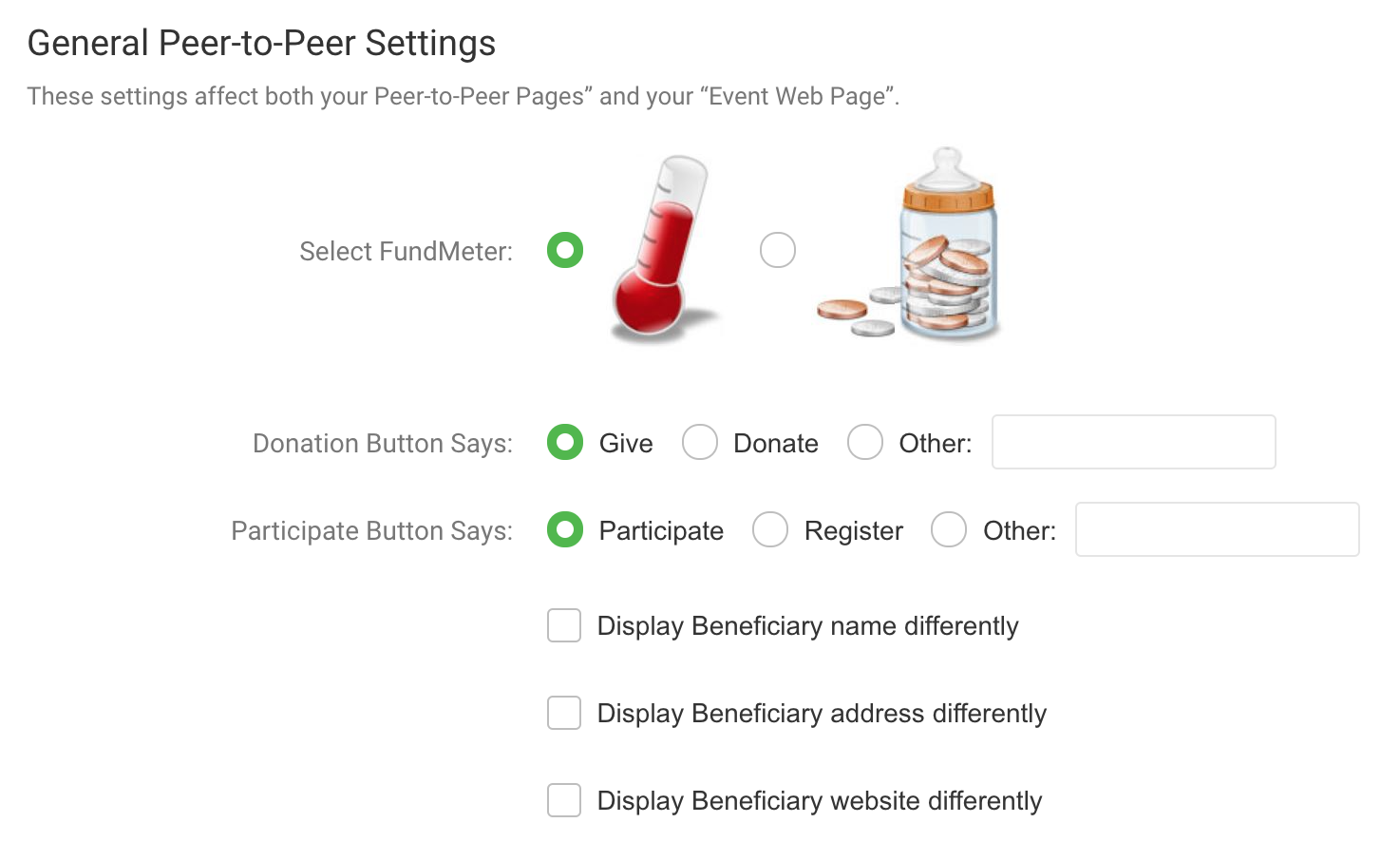
Select a FundMeter - choose between a thermometer and a baby bottle. Note: The FundMeter does not show on your Event Web Page if you haven't added your goal to the Event details. Once you have 1% of your goal raised, the FundMeter will appear.
Donation Button Says: Choose Give, Donate, or choose another word. Ten character limit.
Participate Button Says: Participate, Register, or choose another word. Sixteen character limit.
Display Beneficiary name differently: Use this option if you are using a DBA so your beneficiary name shows correctly on your participants' fundraising pages and your Event Web Page.
Display Beneficiary address differently: If you have another address, like a PO Box, that you want to show on your templates, check this box and add the address here.
Display Beneficiary website differently: This option displays a different website on your participants' fundraising pages and your Event Web Page other than the website that is in your account information or event details.
Event Web Page Settings
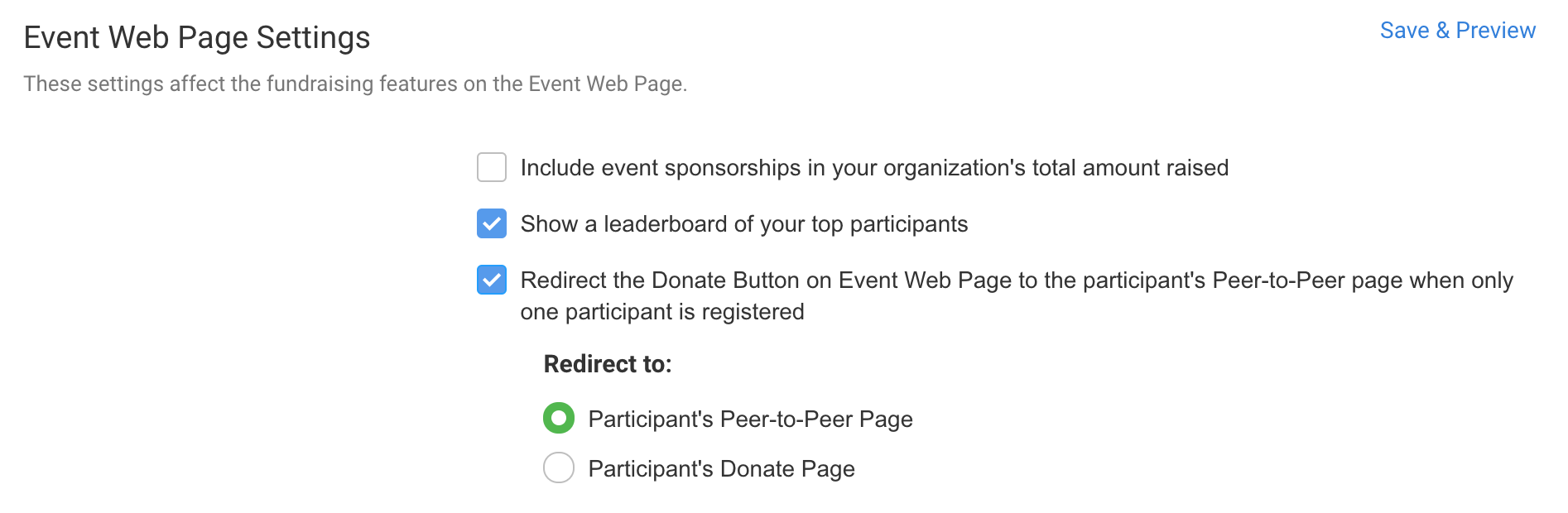
Include event sponsors in your organization's total amount raised: When checked, the total amount given by your event sponsors and recorded in the Event Sponsors section will be added to your fundraising total in the Event Web Page and the Dashboard.
Show a leaderboard of your top participants: This box is checked by default. Uncheck it to remove the leaderboard of top fundraisers from your Event Webpage and from the participant's fundraising pages.
Redirect the Donate button on Event Web Page to the participant's fundraising page. If your event or campaign only has one participant page, you can have the Give/Donate button on the Event Web Page go directly to that page or to the donate form on that page. This is perfect for campaigns that aren't recruiting other fundraisers.
Fundraiser Page Settings (for Participants)
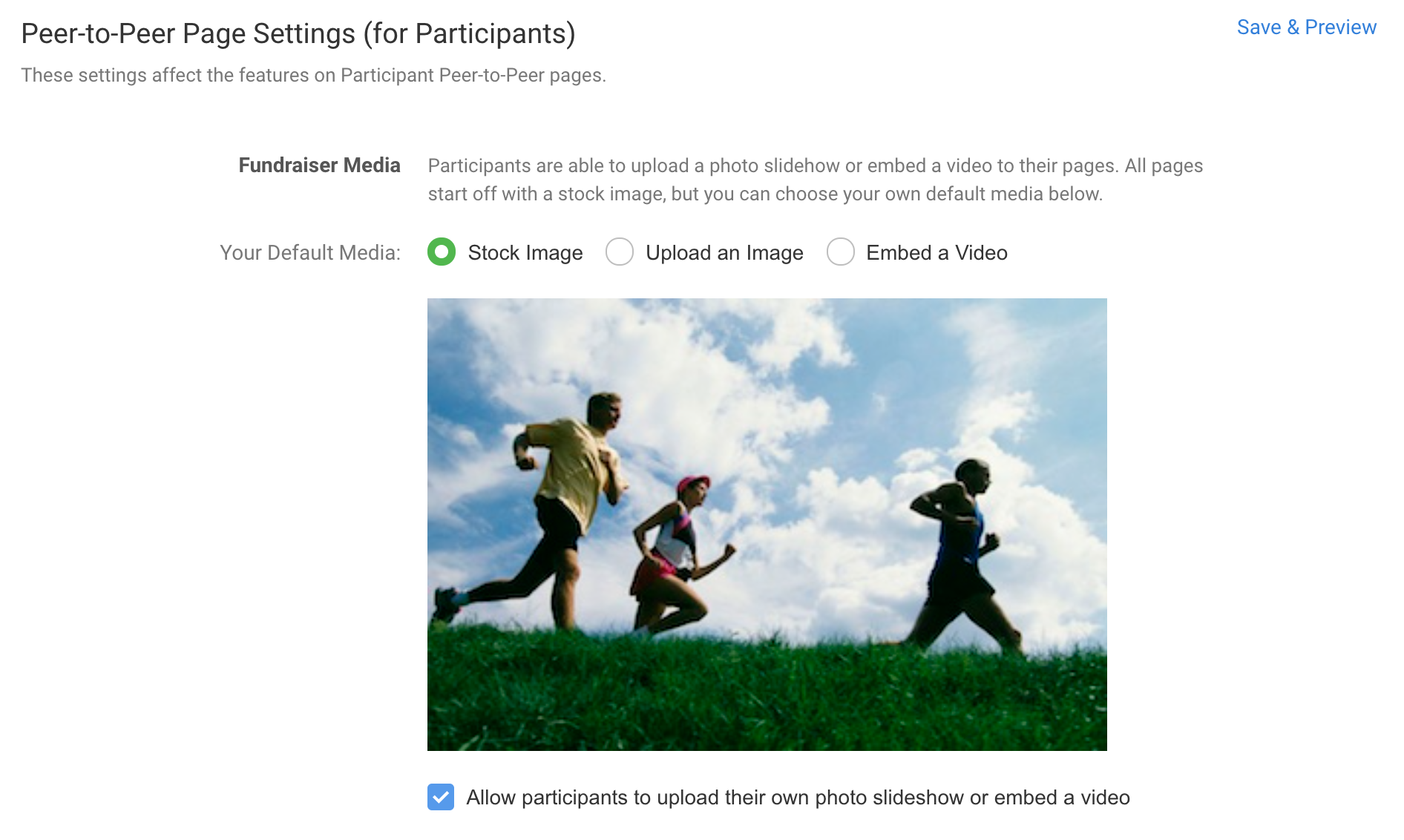
Fundraiser Media
Participants are able to upload a photo slideshow or embed a video to their fundraising pages by default.
All pages start off with a stock image, but you can choose your own default media, either an image or embed a video.
Supported video services are Youtube and Vimeo
Recommended image size for fundraising page slide show:
1600px wide and 1050px tall.Images over 20 MB will not upload.
Supported file types: JPEG, PNG, or GIF.
Uncheck the box to disable the option to allow participants to upload an image or video.
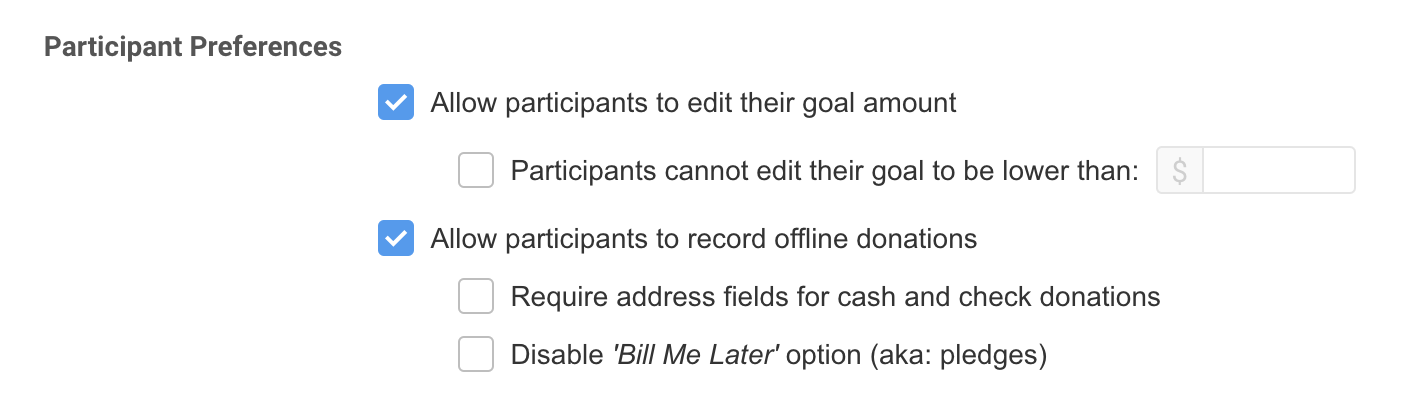
Participant Preferences
Allow participants to edit their goal amount
and set a limit for how low a participant can change their fundraising goal to be. This allows them to change the goal amount, but not lower than your suggested amount.
Allow walkers to record offline donations
Require address fields for cash and check donations when entered by participants (not recommended). This will require the address fields for participants and admins only for offline donations. Online donations always require contact fields. Note: we do not recommend this option because your participants and administrators will most likely not be have the contact information. Requiring these fields may discourage your participants from recording donations or may result in fake data entered into your database.
Disable Bill Me Later: Checking this box prevents your participants from entering donations with a Bill Me Later payment method.
Donor Preferences
Hide donor last names on the participant's public donor list: Uncheck this option if you want to show the last names of the donors on participant's pages.
Hide donor donation amount on the walker’s public donor list: Check this option if you do not want to show the amount each donor gave on all fundraising pages.

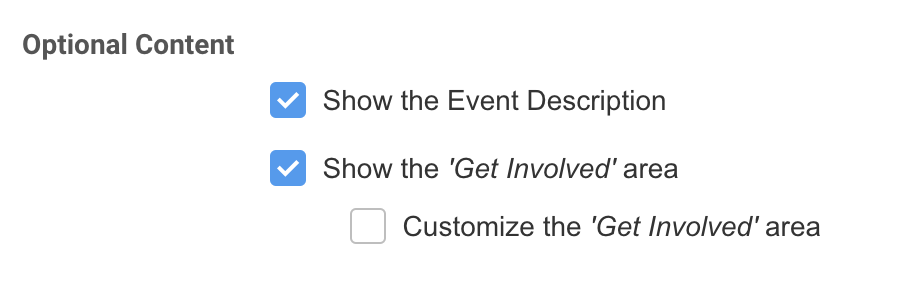
Optional Content
Show the Event Description (on by default). When unchecked this option removes the Event Description section from fundraising pages.
Show the ‘Get Involved’ area (on by default) in the right column on the participant's pages. The Get Involved area includes the link to the Event Web Page, a link to find another fundraiser, and a link to register to the event. Uncheck this option to hide the Get Involved area.
Customize the 'Get Involved' area. Check this box to show the text editor for the Get Involved area.
Donation Page Settings
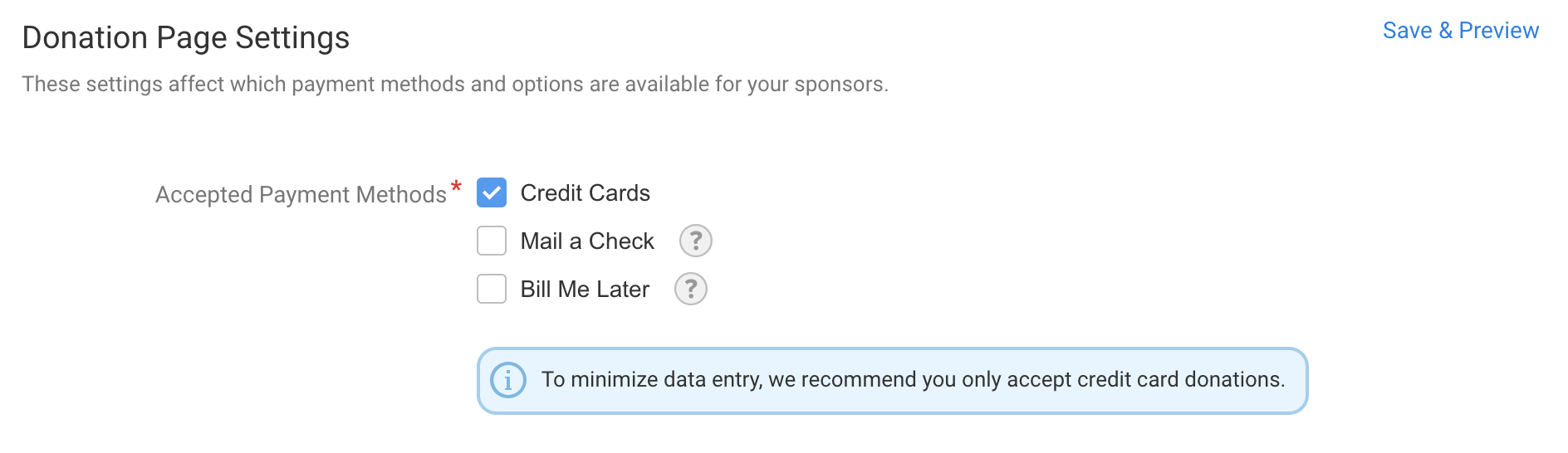
Accepted Payment Methods: Set the payment methods that donors can choose when making a donation: Credit Card (by default), Mail Check, Bill Me Later (pledge).
Note: this does not change your participant Registration Form payment options. Please contact the support team to help with the payment methods on the participant Registration Form.Donation Options
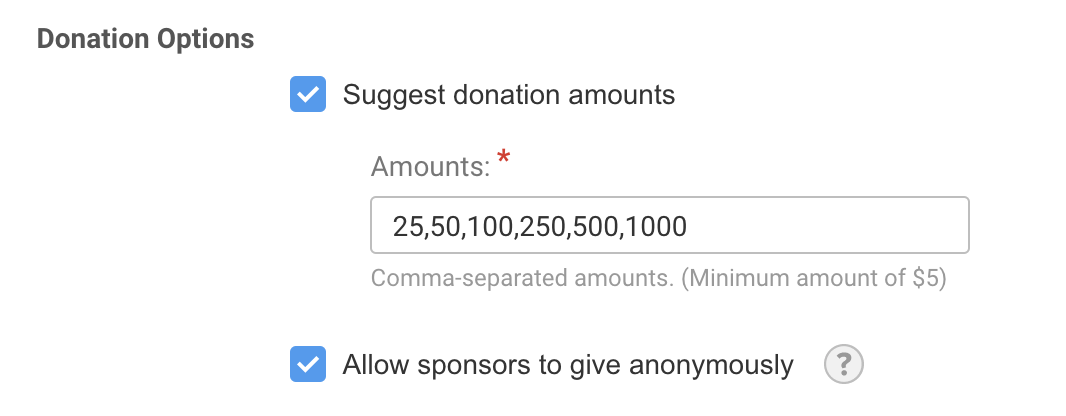
Edit suggested donation amounts: The most common default amounts are listed for you. List your donation amount suggestions, separated by commas.
Allow Sponsors to give anonymously. This adds a checkbox on the donation form to allow sponsors to donate anonymously. Your sponsor's name and contact information will be collected when they donate; however, their name will not appear to the Participant or to the public on the fundraising page. Note: To make a donor anonymous after they have donated, please contact the support team. Click here for more information about anonymous donations.
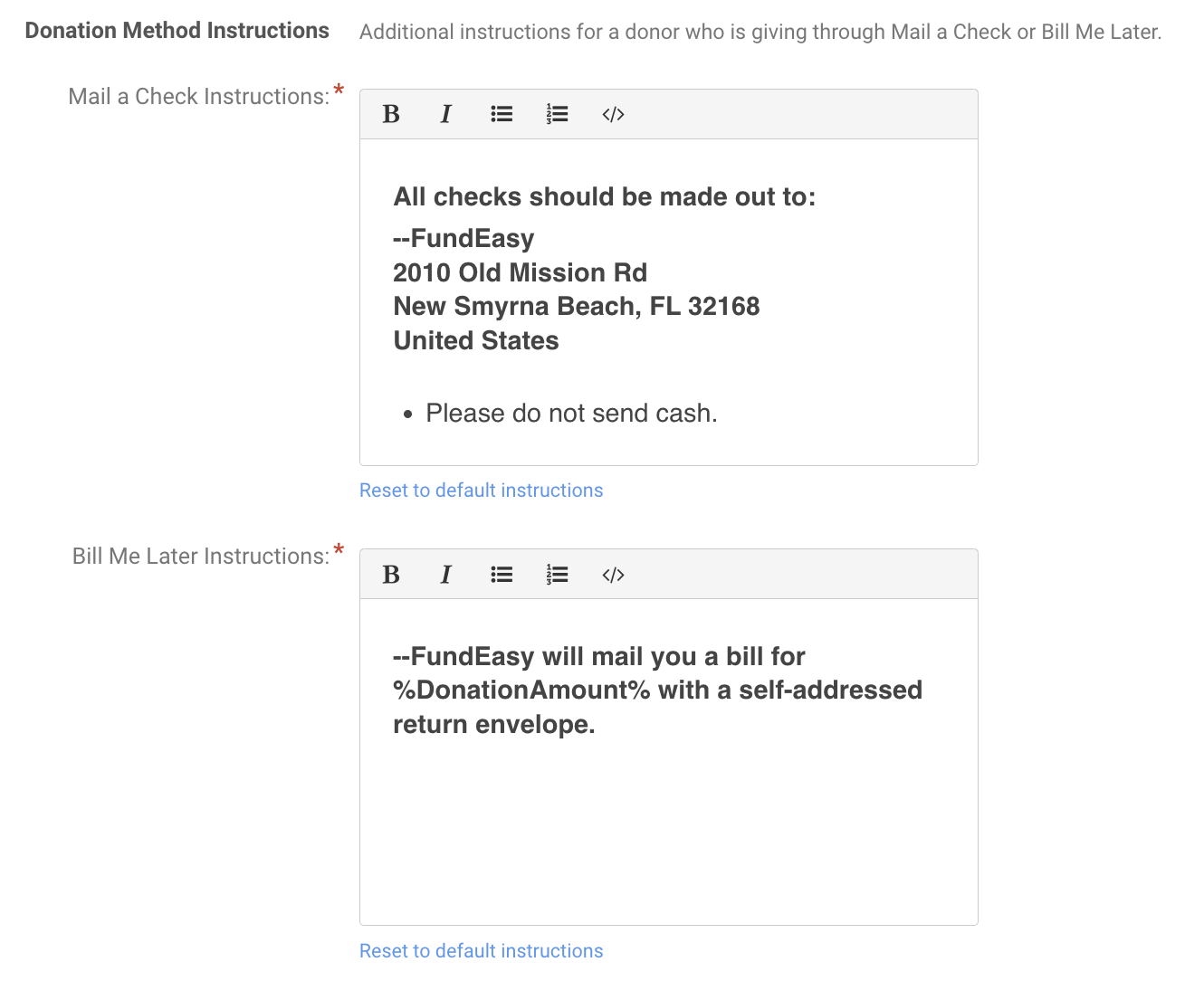
Edit Offline Payment Instructions
Customize the information that offline donors see when making their pledge