

The text editor in Event Details, on various templates, and in certain individual fields on the registration form allows you to insert images. To insert an image, place your cursor where you want the image to be and click on the Insert Image icon from the text editor toolbar.

To edit an image you've added, click the image in the the text editor to open the menu for images.
(from left to right)
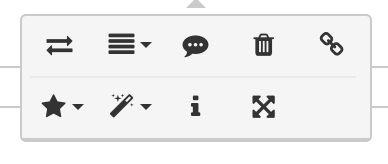
Replace - swap out the image with another image.
Align - left, right, or center
Add a caption
Delete
Add a link
Display - Inline wraps the text around the image. Break text puts the words above or below the image
Style - this changes the shapes of the images. This may not show on all your templates when they pulled in by variables.
Alternate text - what people will see if the image doesn't show on the browser or email
Change size - edit the size of the image. Remember that images that will appear in email templates, including ones added in event details, should be no wider than 490px.
How can I add and edit images? Video
(Read video transcript here.)