

The text editor in Event Details, on various templates, and in certain individual fields on the registration form allows you to embed videos. Though we don't host your video, you can add a link to your video that you have hosted on another site. You can also add the embed code.
To insert a video, place your cursor where you want the video to be and click on the Insert Video icon from the text editor toolbar.

Note: Videos on email templates, even those added through the Event Description variable, will not appear on email templates. You can add a screenshot of the video to the template and then link the image to the hosted video. Here is more info about adding images.
To edit a video you've added, click the video in the the text editor to open the menu for videos.
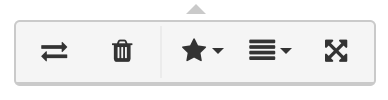
(from left to right)
Replace - swap out the video with another video.
Remove - delete the video.
Display - Inline wraps the text around the video. Break Text puts the words above or below the video.
Align - Choose to align the video to the left, center, or right of the page.
Change size - edit the size of the video.
How can I add and edit videos? Video
(Read video transcript here.)