

The Express Self Check-In page functions like a landing page for your guests on the day or night of your event. For instructions on how to set up the landing page and email it out, click here.
Keep in mind that the Express Self Check-In template can be used as a blank slate. Here is what the template contains by default:
Events created before the new virtual/hybrid/in-person event types were released do not include anything on the Express Self Check-In Page.
For in-person events created with the new in-person event type, the Express Self Check-In Page includes "You are checked in!" wording, the event location, date/time, and a map.
For events created with the new virtual and hybrid event types, the Express Self Check-In Page includes "Welcome to Our Livestream" wording, a video placeholder (which you can replace with your video), and a default Give button which links to your Event Web Page (and which you can re-link to your giving page).
The main purpose of the landing page is to display your video/livestream or direct people to where it is being hosted. You can embed your video right on the page, or create a hyperlink to the video source.
To maximize this space you may also consider including:
A welcome message/instructions for viewing the video (including a passcode if applicable)
Giving options (link to your own giving page or create a free Crowdfunding campaign for event giving)
Event program/order of events
Sponsor recognition (insert the %EventSponsors% variable if you've added sponsors to the Event Sponsors tab, or upload sponsor logos manually to the template)
Sponsor levels (information for people who many choose to sponsor the event/ministry)
Ministry updates/volunteer opportunities
Your organization's logo/branding
Contact information (for your organization and/or for someone to contact the night of the event if guests have trouble viewing the video)
Follow up information (what to do next)
Remember that the page can be set up however you like - simple or robust! These are just some ideas that we've gathered from observing how organizations like yours have used this page.
To see what these elements look like in action, scroll through the examples below. What you see in the following examples are customizations that were, in most cases, made by the individual organization. The Support team can help you set up your page, but they may not have access to the same images/buttons/formatting. To make custom buttons that match your event theme we recommend Canva, a free and easy-to-use graphics design tool.
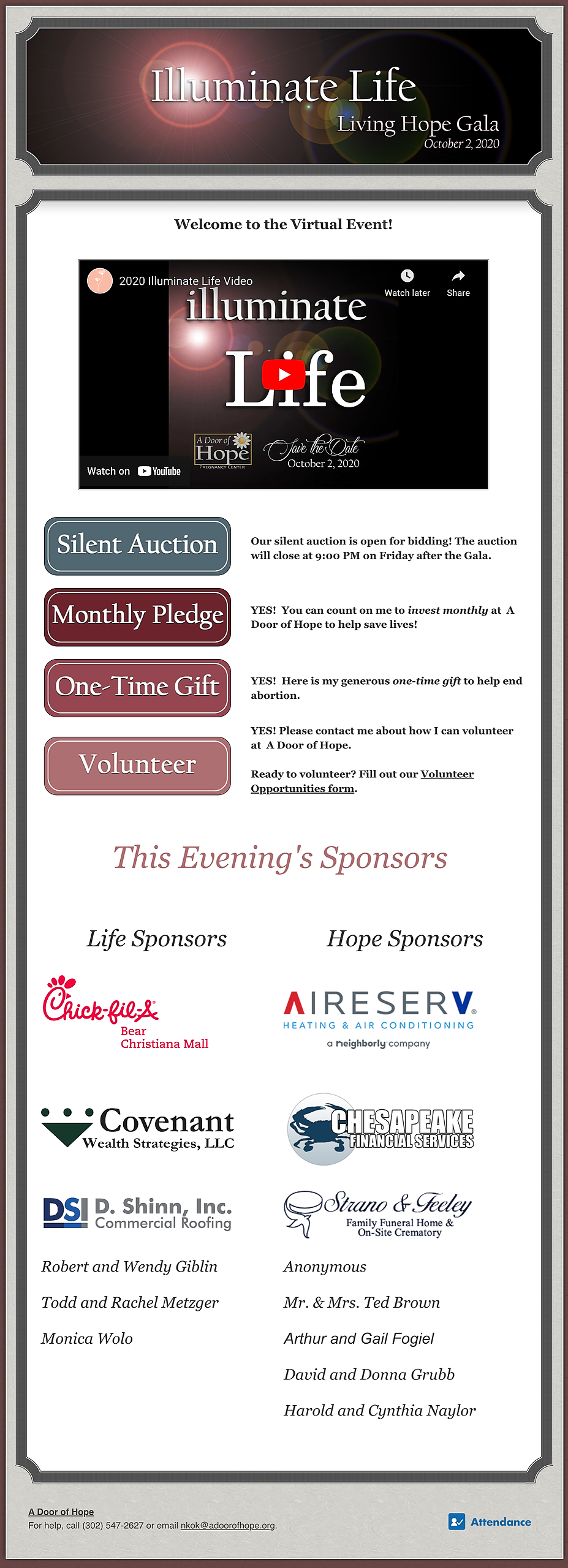
Example #1 - Embedded video, multiple giving options with custom buttons, sponsor recognition
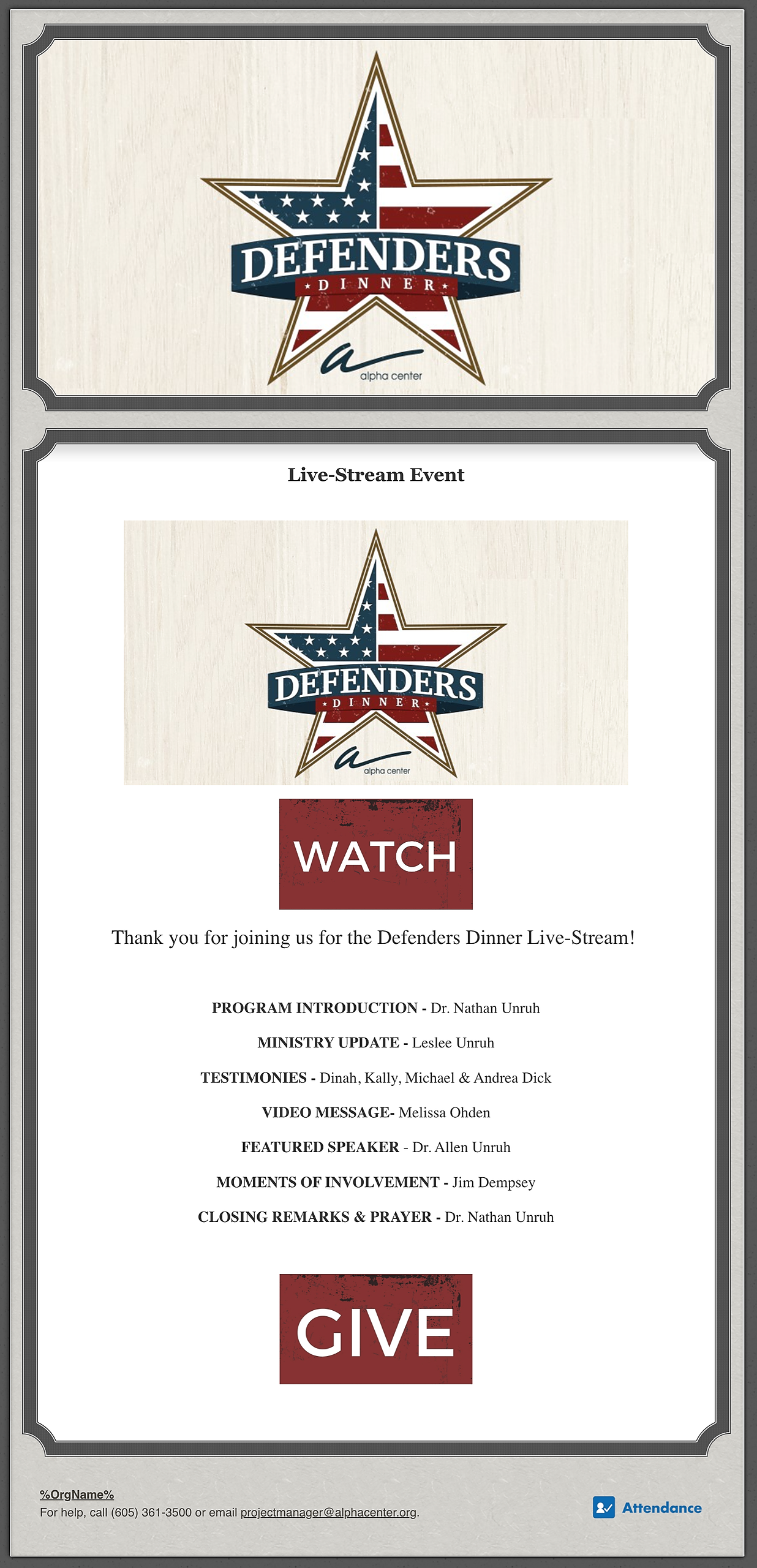
Example #2 - Link to video (custom button), event program, custom Give button
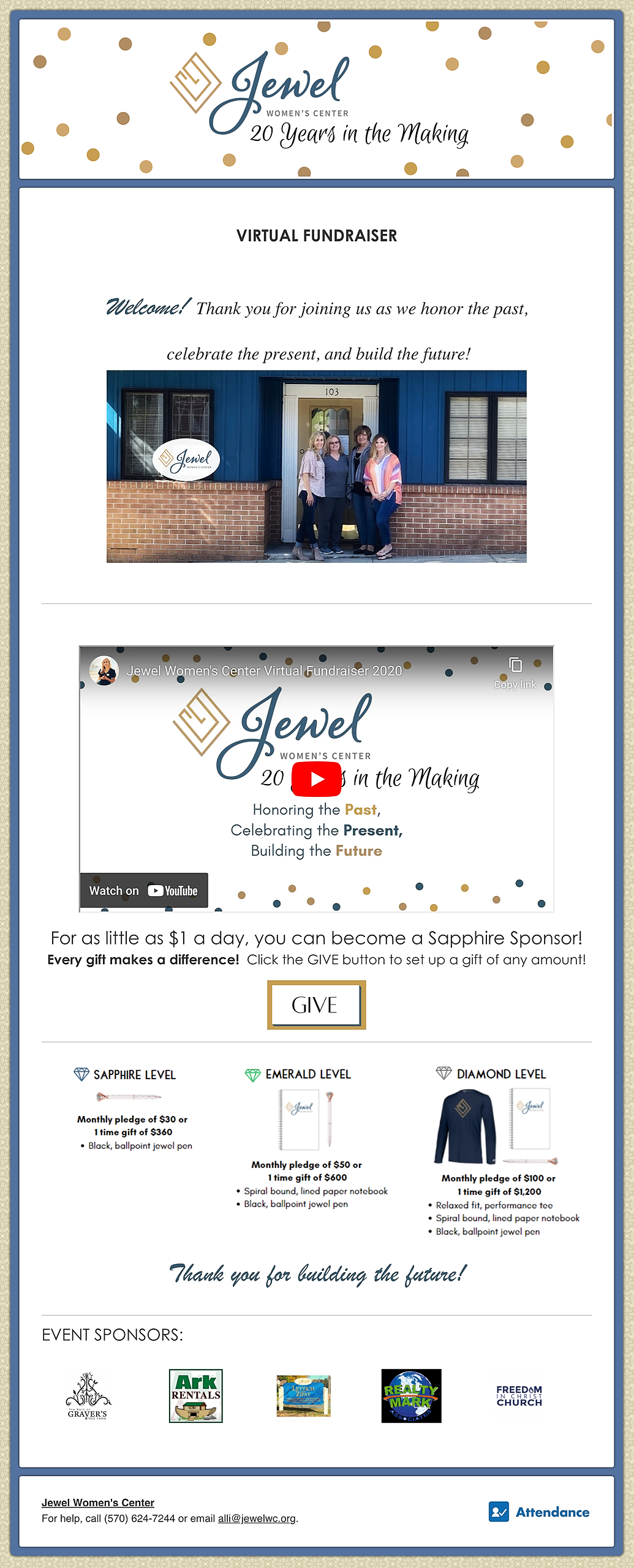
Example #3 - Welcome message/image, embedded video, sponsor levels/incentives, custom Give button, sponsor recognition
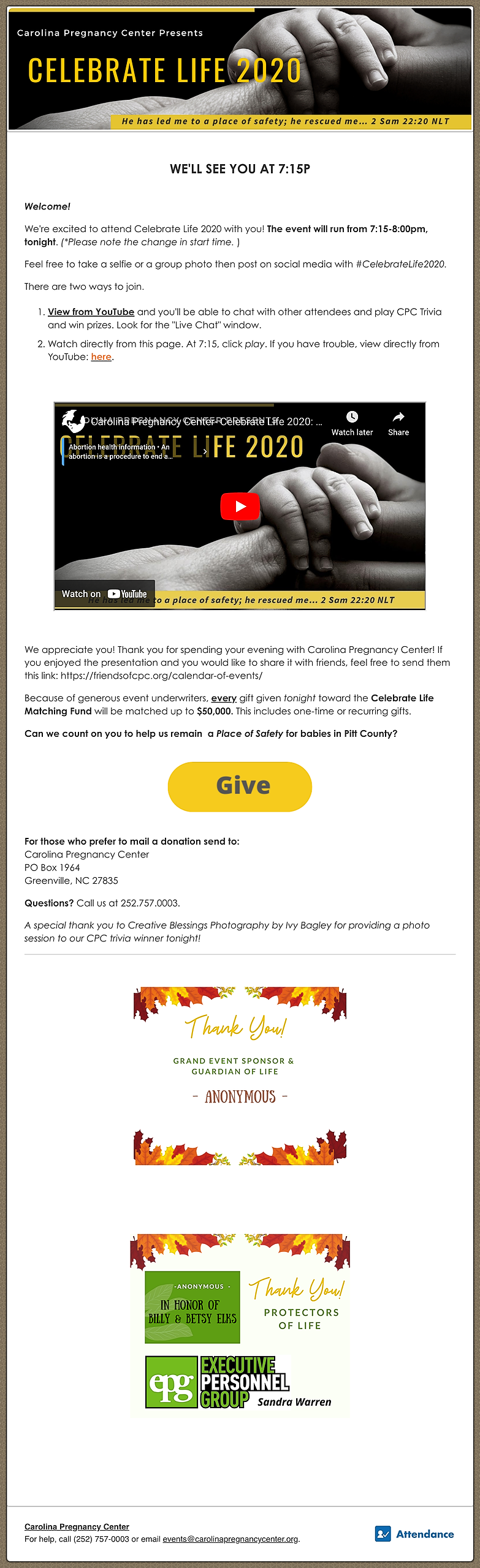
Example #4 - Welcome message/instructions, embedded video, custom Give button, follow up information, contact information, sponsor recognition
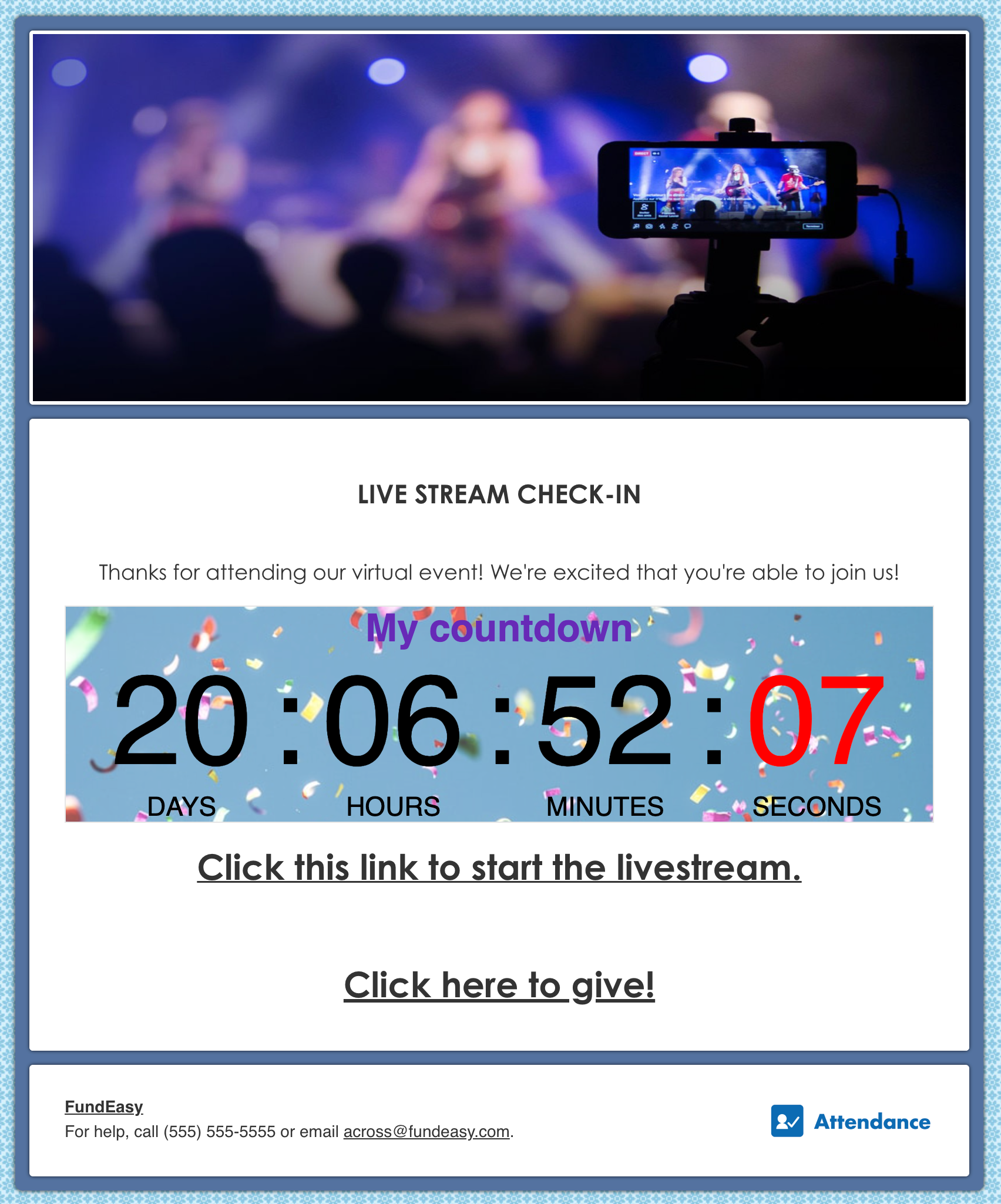
Example #5 - Welcome message, countdown to event, link to video, link to giving page
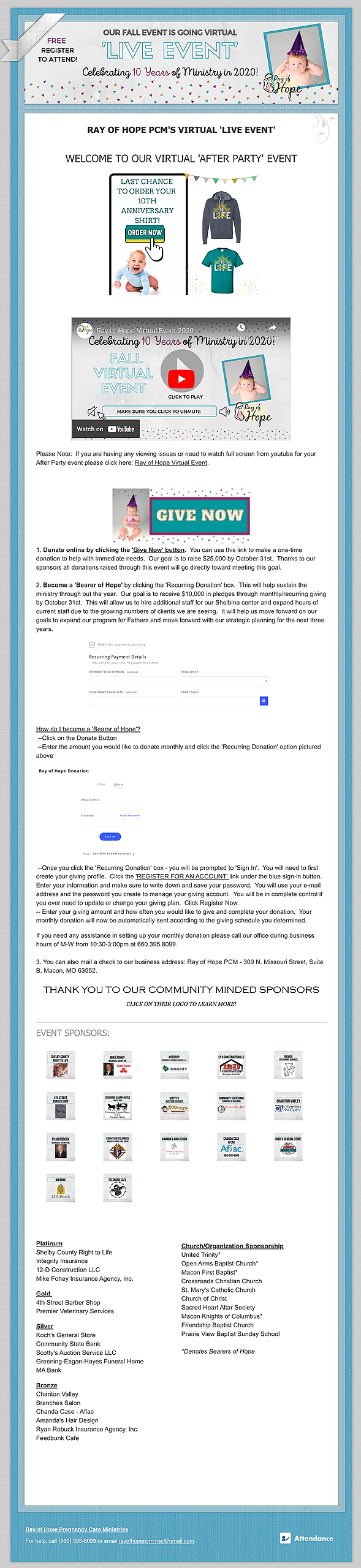
Example #6 - "After Party" setup, link to video, giving options, sponsor recognition
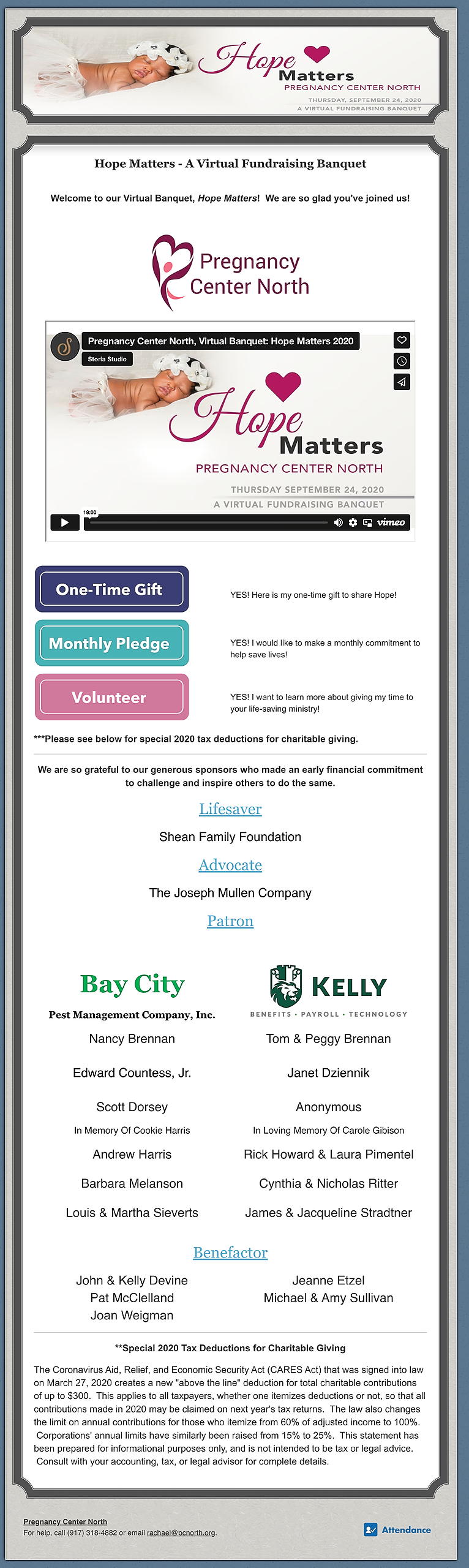
Example #7 - Welcome message, organization logo, custom Give buttons (with tax information for donors), sponsor recognition
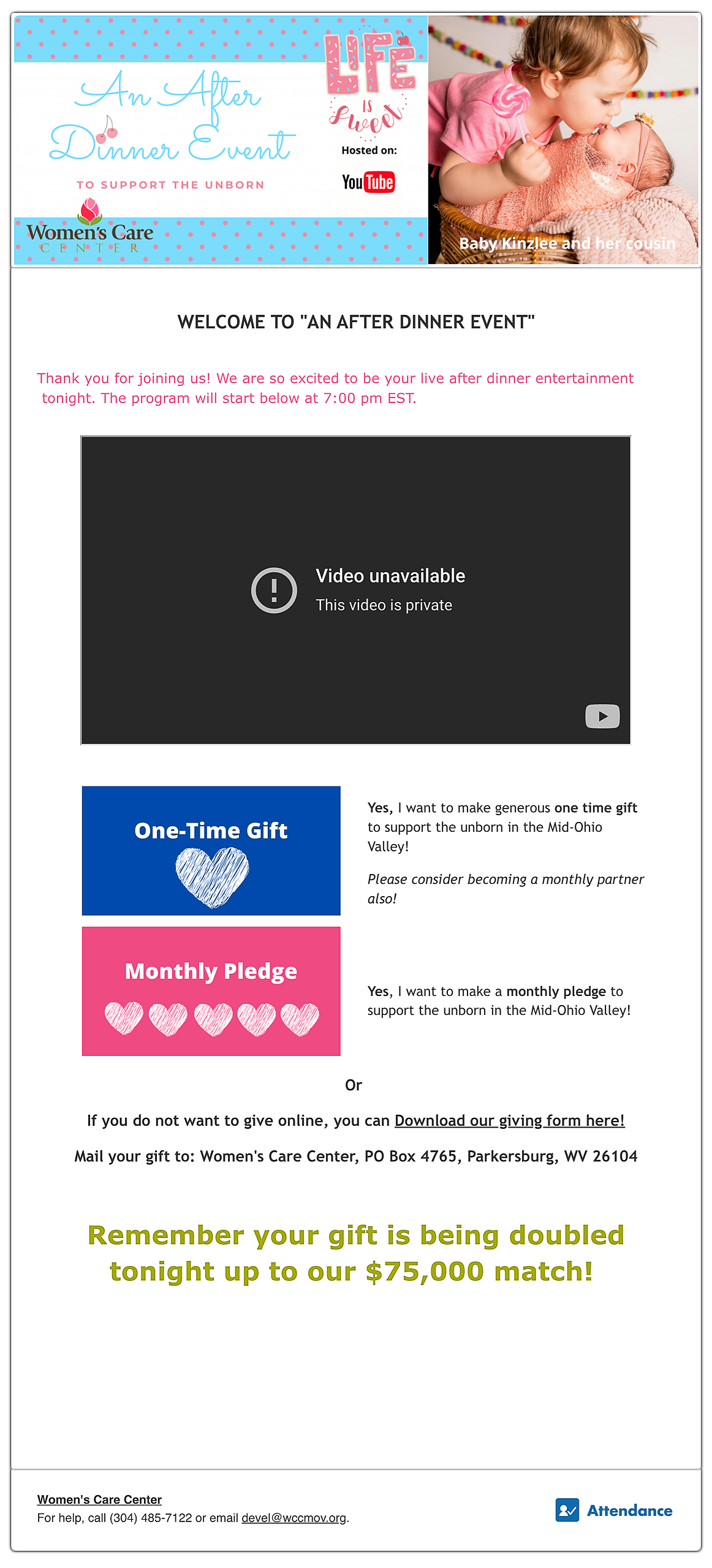
Example #8 - Welcome message, embedded video, custom Give buttons, information to mail a check
As you can see, no two organizations set up this page the same way. This is just a small selection of what we have seen so far and we hope that it serves to give you some ideas of how you can make your landing page work for you!
For more information about how to set up the landing page please refer to this article.