Looking for information on Peer-to-Peer usernames? This article should help.
Note: if someone has an existing Account User profile and they need access to additional organizations within FundEasy, please reach out to the Support Team via chat or email (support@fundeasy.com) to request Consultant Access for that user. Consultant Access allows someone to switch between multiple organizations with the same username and password. The Support Team will need to verify the request with an Account User from each additional organization before enabling that access.
Create a new Account User
Click your organization logo in the upper right corner of the black menu bar. You must be logged in as an Admin in order to create a new user.
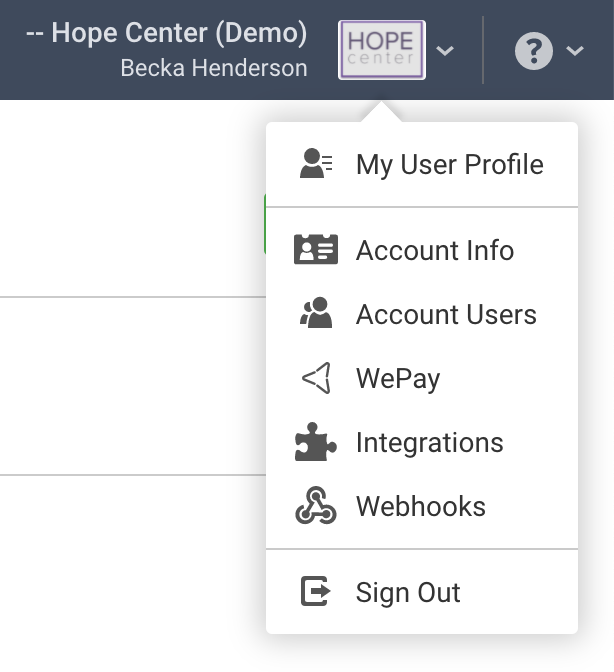
Click Account Users.
Click Invite New User
Fill out the Invite New User form with the name and email address of the person you're inviting. Note: The email address will be the username for this user.
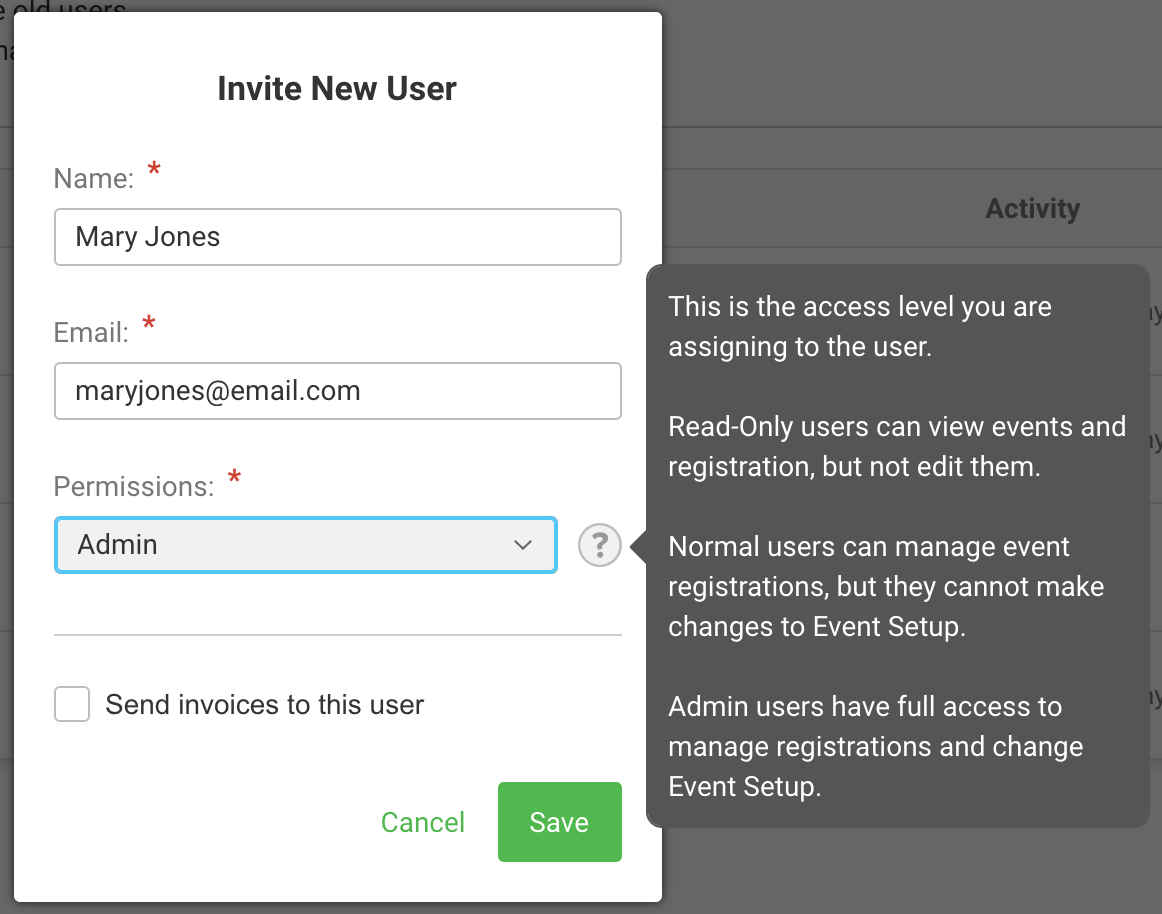
Choose a permission level for the user.
Read only users can view events and registration but not edit them.
Normal users can manage event registrations, but they cannot make changes to Event Setup
Admin users have full access to manage registrations and change Event Setup. Admins can invite other users to the account.
Check the box to send invoices if the admin needs to receive invoices or needs to be able to edit Admin access for other users.
This checkbox only shows when logged in as an admin who can receive invoices.
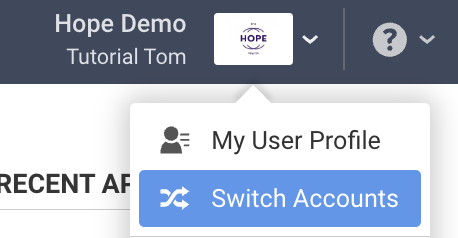
Consultant users (not shown in the dropdown) have to be enabled by FundEasy Support to have access to multiple accounts with one username. When this is the case, they'll see the Switch Accounts option in the account dropdown in the upper right hand corner.
Click Save to send the new user an invitation email.
If you need to revoke an invitation before it is accepted, you can do that from the chevron menu to the right of the user's name in Account Users.
Create a new user profile
When the new user clicks the Accept Invitation button in the user invitation email, it will take them to a page to create their user profile.
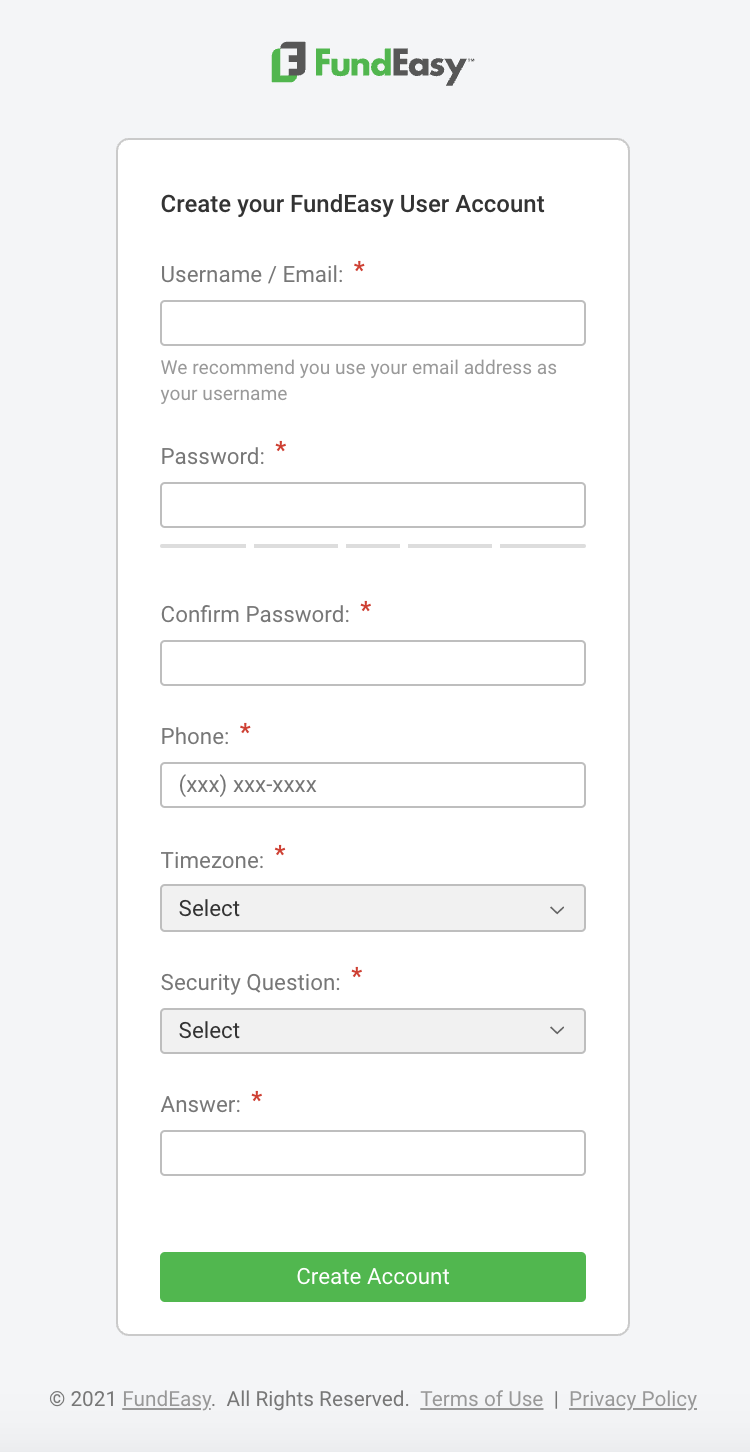
Their email address will be greyed out and marked as their username. The user can create their own password. Notice that phone number, timezone, and security questions are required.
The Create Account button will create their profile and take them to the FundEasy login page.
Editing a user account
All users can edit their own profile information (such as their own username, password, etc.) from the organization logo in the upper right corner > My User Profile. Profiles cannot be edited by other people.
You must be logged in as an Admin to add or edit a user other than yourself.
To edit a user, click your organization logo in the upper right corner.
Click Account Users. If you are not an admin, this will not be visible.From Account Users, you can see the Role (access) that each user has. Roles can be Read Only, Normal, Admin, and Admin Can receive Invoices.
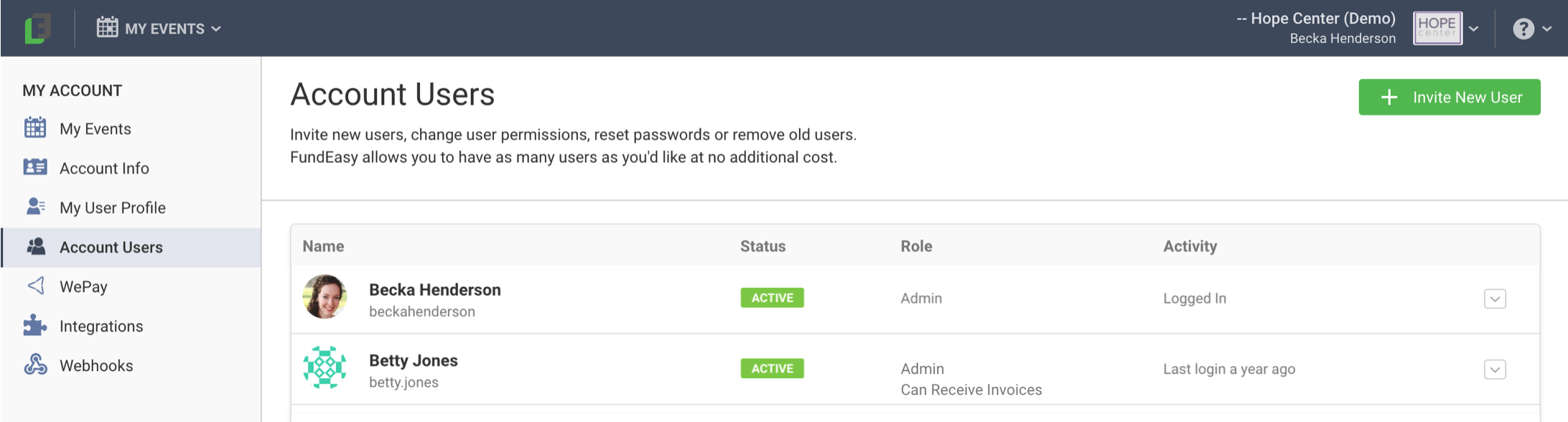
Click the chevron to the right of their name and choose edit icon next to the person you want to edit.
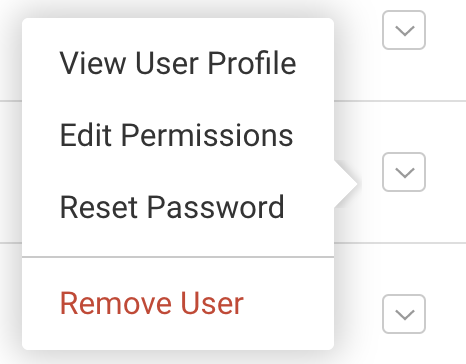
Admins who can receive invoices can view user profiles, edit their permissions, send a password reset link, and remove a user.
Admins who cannot receive invoices can
view another Admin's user profile and send a password reset link.
view profiles, edit permissions, send a password reset link, or remove Normal and Read only users.
If a user has tried to log-in unsuccessfully multiple times, they will be locked out of their account. They will need to wait the amount of time designated in the alert before they try again. Once they have reached a 60 min or more time out, a lock icon will appear in the Account User section, and the user access will need to be unlocked by the support team.
Removing a user
Click your organization logo in the upper right corner of the black menu bar.
Click Account Users.
Click the chevron next to the user you would like to delete.
You must be logged in as an Admin in order to remove a user.
Admins who can receive invoices can remove any user.
Admins who cannot receive invoices can only remove Normal and Read Only users.
Forgot Your Username or Password?
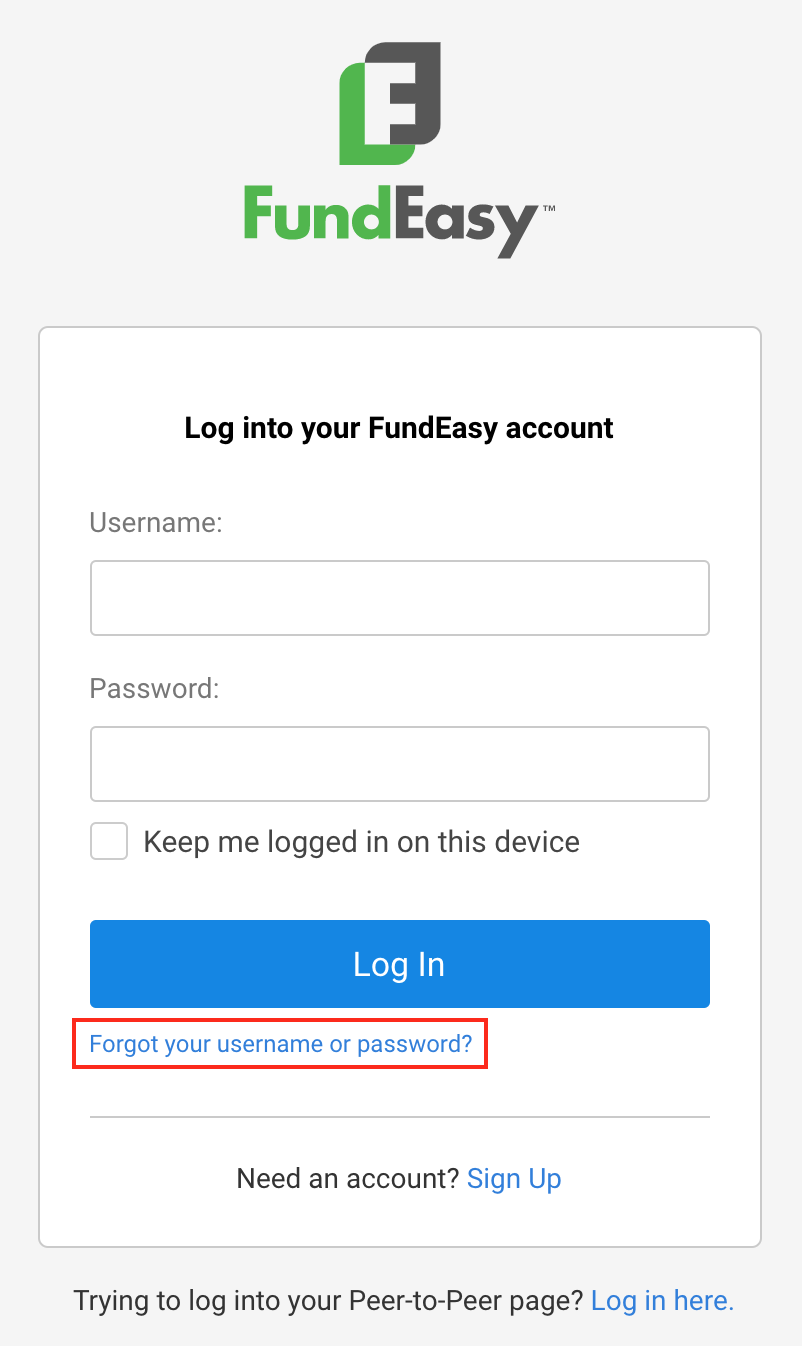
If you need to log into FundEasy but can't remember your username or password, just click the "Forgot your username or password?" link toward the bottom of the log in page.