

Sharing your event on your organization's Facebook page is as simple as clicking a button. When you click any of the Facebook buttons on your templates or on your Dashboard, your browser will bring up your Facebook page or your Facebook login page.
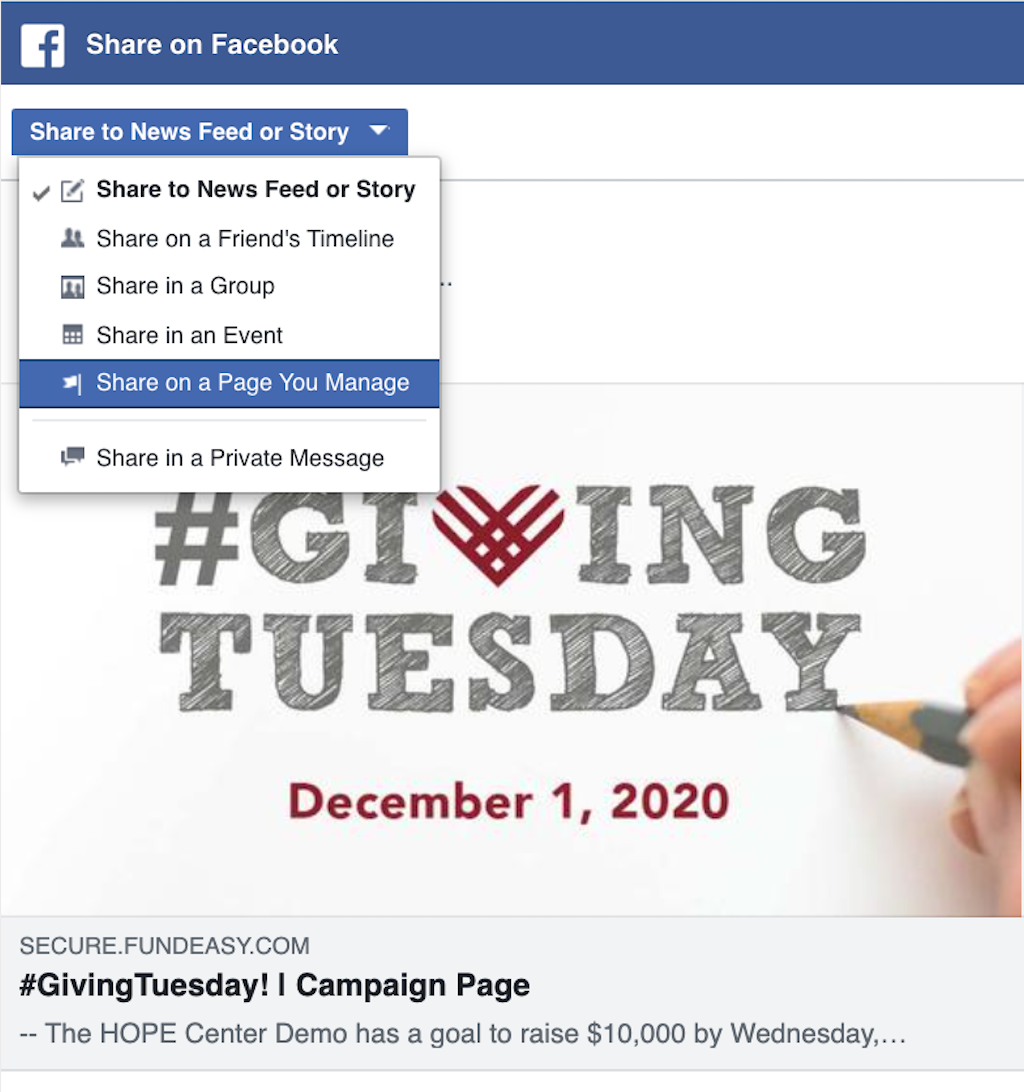
You can choose to post on your own page or on your organization's page.
If you are an admin on a Facebook page, you may be asked to change your role to the Facebook user profile and not the page admin before sharing.
Text used in the description comes from the Event Details or the Speaker Description. Facebook looks for the first paragraph that is 120 characters or more. If you're using a hard line break <enter> between lines, Facebook sees each line as a separate paragraph. Try using <shift> + <enter> to keep it in one paragraph but on separate lines. If words are run together, add a space at the end of a line.
When you share your page, we automatically pull in the most up-to-date information. You shouldn't need to use the Facebook debugger, but it is available if needed.
Attendance's Facebook banners should be 940 x 492px.
Peer-to-Peer's Mobile banners are used on Facebook. The size should be 940px wide and 492px tall.
Supported file types: JPEG, PNG, or GIF.