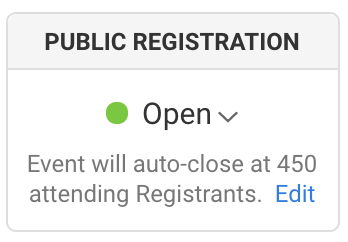
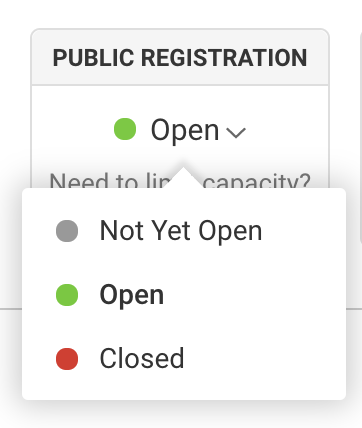
To open or close your event, click Dashboard in the Event Tools navigation menu on the left. Click the Public Registration dropdown and choose Not Yet Open, Open, or Closed.
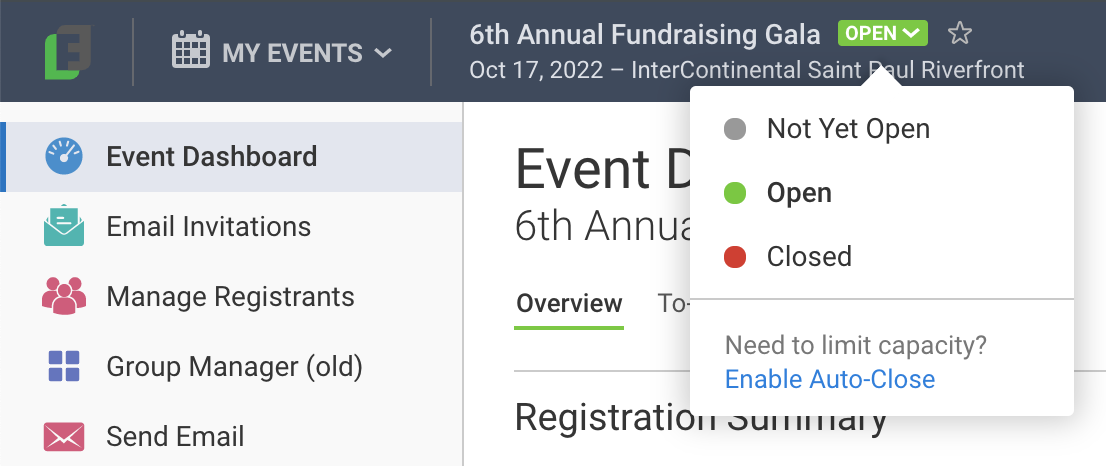
You can also click on the dropdown next to the name of your event in the top menu toolbar.
Not Yet Open - Before your event is ready to launch, set your event to Not Yet Open. When your guests click the register button on your Event Web Page, they will see the Not Open Yet page. This page includes the event contact phone number and email address for more information. You can edit this template from Event Setup > Web & Email Templates.
Open - This opens your event registration to the public. These Host Manager Event Preferences are available when registration is open.
Allow hosts to view, invite, add, edit, and remove guests (default)
Only allow hosts to view their guest list
Closed - When you're ready to close registration, choose close. Any guests who try to register to a closed event will get the Registration Closed page. This page includes the event contact phone number and email address for more information. You can edit this template from Event Setup > Web & Email Templates. These Host Manager Event Preferences are available when registration is closed.
Redirect hosts to the Registration Closed page (hosts cannot view or edit guests or add guests to a closed event) (default).
Allow hosts to view, add, edit, and remove guests.
Only allow hosts to view guests.
Crowdfunding campaigns, like #GivingTuesday and Year-End Campaigns, open and close based on the Fundraising Start Date in Campaign Details.
Closing your event
Attendance and Peer-to-Peer events automatically close public registration at midnight after your event. Peer-to-Peer fundraising pages stay online for 30 days after your event even if your event registration is closed. As an admin, you can register guests from the admin side while the event is closed.
If you have enabled the auto-close feature to limit the event's capacity, it will automatically close your event when the limit is reached. You can edit the auto-close limit from the Public Registration section of the Dashboard.