

The support team is happy to do this for you, but it isn't difficult if you'd like to try it yourself. This video shows you how:
How to Delete the Location Sections in Your Templates Video
(Read video transcript here.)
Note: If you make a mistake, you can reset the template to default, as long as you haven't made any other customizations to the template itself. The Reset to Default link is in the footer on the bottom of the page.
To remove the location section and map from Web Templates in Attendance:
Go to Event Setup > Web & Email Templates, click one of the Web Templates, and click the Edit Template button in the top right corner.
Click the Code View icon (</>) in the toolbar above the Page Body field.
Delete the <div> that says id="locationInfo"
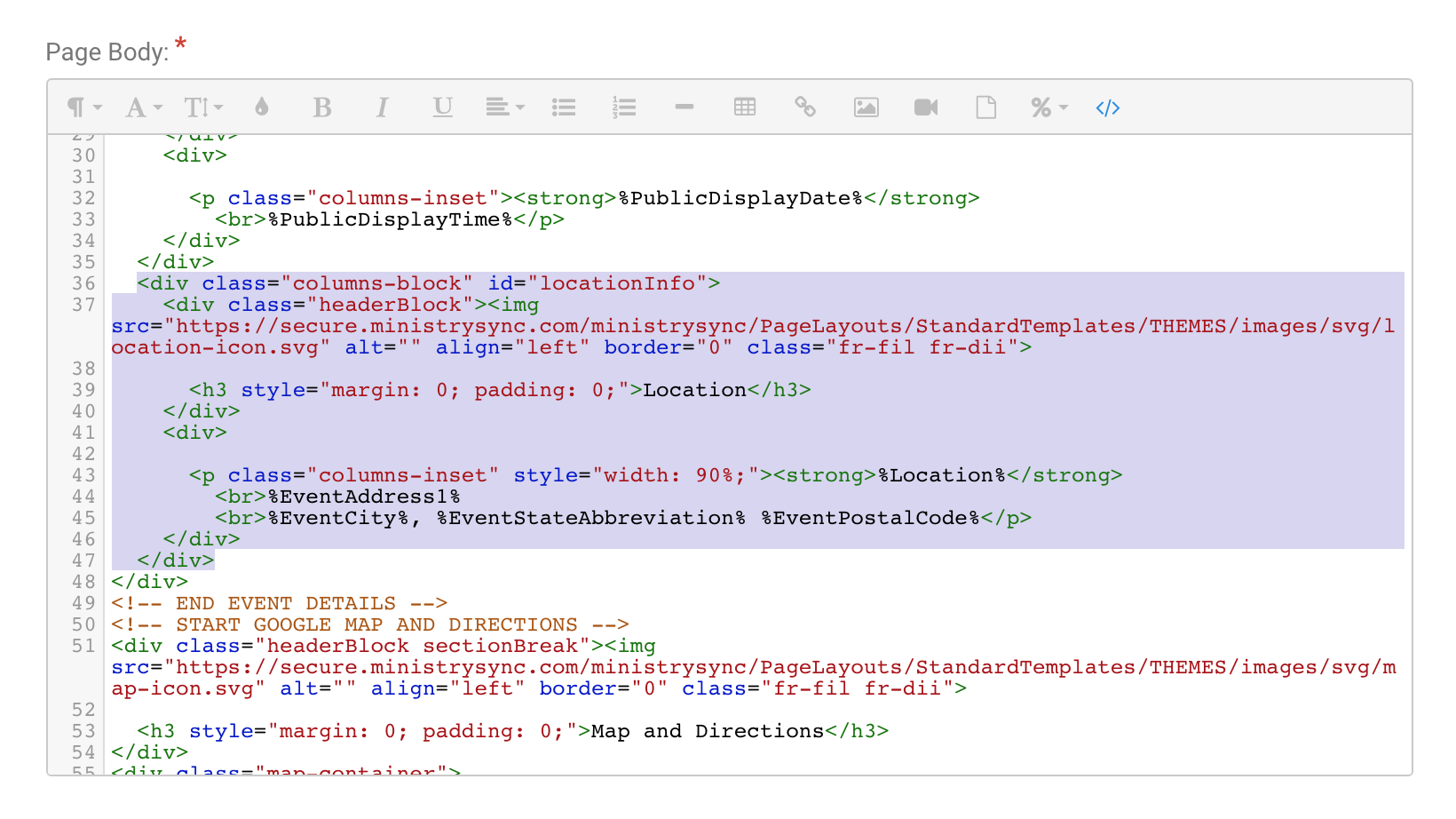
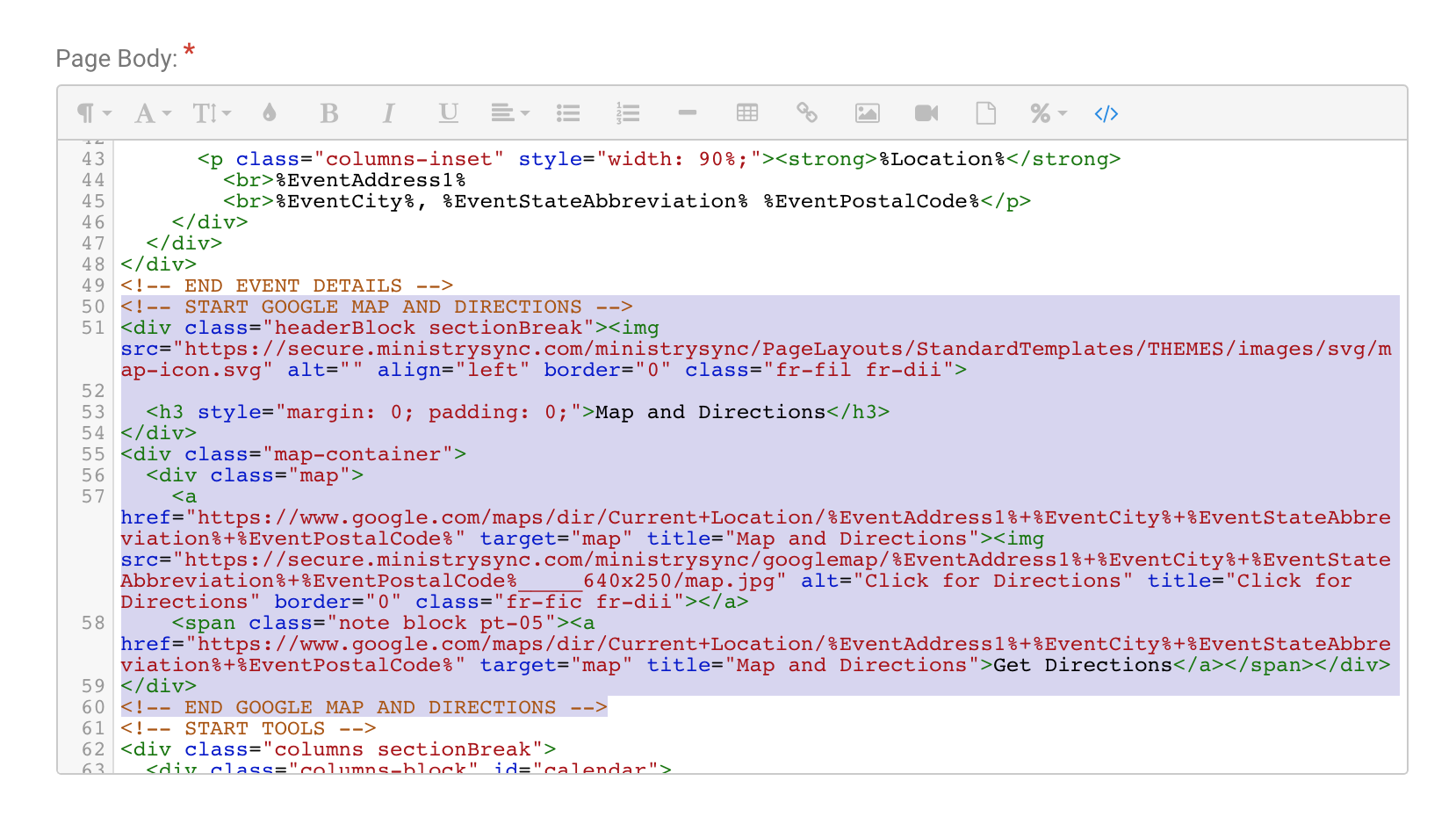
Delete the section that starts with <!-- START GOOGLE MAP AND DIRECTIONS --> and ends with <!-- END GOOGLE MAP AND DIRECTIONS -->
Click Done at the bottom of the page.
Web Templates with location sections in Attendance are:
Event Web Page
Registration Not Open Yet
Registration Closed
In Peer-to-Peer, to remove the location in Web Templates, do not add it in your Event Details.
To remove location info, parking instructions, and map from Email Templates (Attendance and Peer-to-Peer):
Go to Event Setup > Web & Email Templates, click one of the Email Templates, and click the Edit Template button in the top right corner.
Click into the Location row. In the little toolbar that appears, click the Row icon and choose Delete Row.
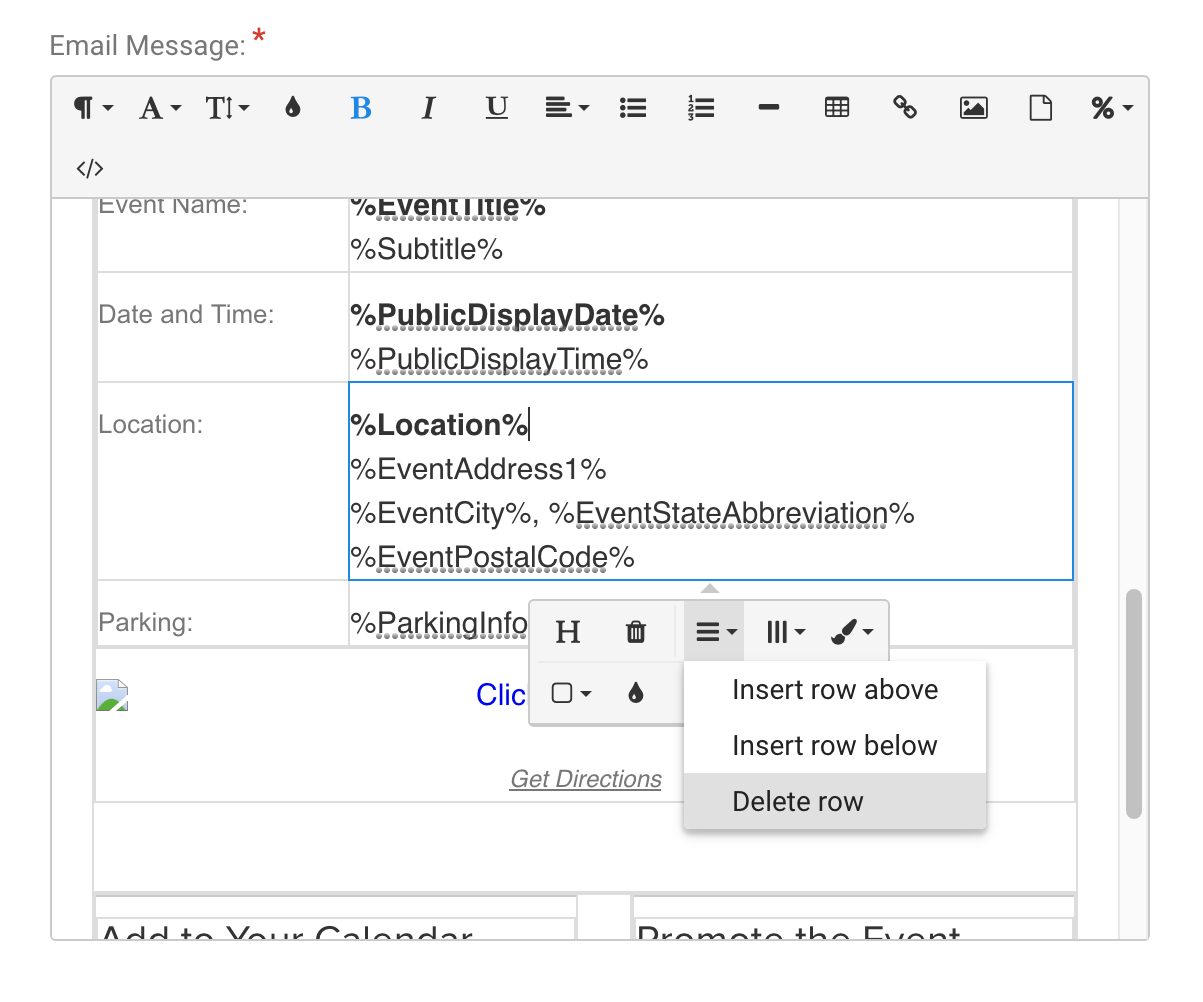
Repeat step 3 for the Parking Instructions row and the map row (for the map row, it's easiest to click between Click for Directions" and "Get Directions").
Click Done at the bottom of the page.
Email Templates with location sections are:
Registration Complete (Attendance & Peer-to-Peer)
Declined Complete (Attendance only)