

If you have used a design in the past, you can import the Details, Preferences, Design, Registration Form, and Templates. Design and templates older than 2017 cannot be imported because the template styles have changed.
Importing will overwrite the existing Details, Preferences, Design, Registration Form, or Templates in your new event. Please be sure that you don't have any registrant information or any Details or Template customizations that you don't want to lose.
The "Import from another event" link is at the top of the Event Setup list. You can also import a past registration form from the Edit Form options on the Registration form.
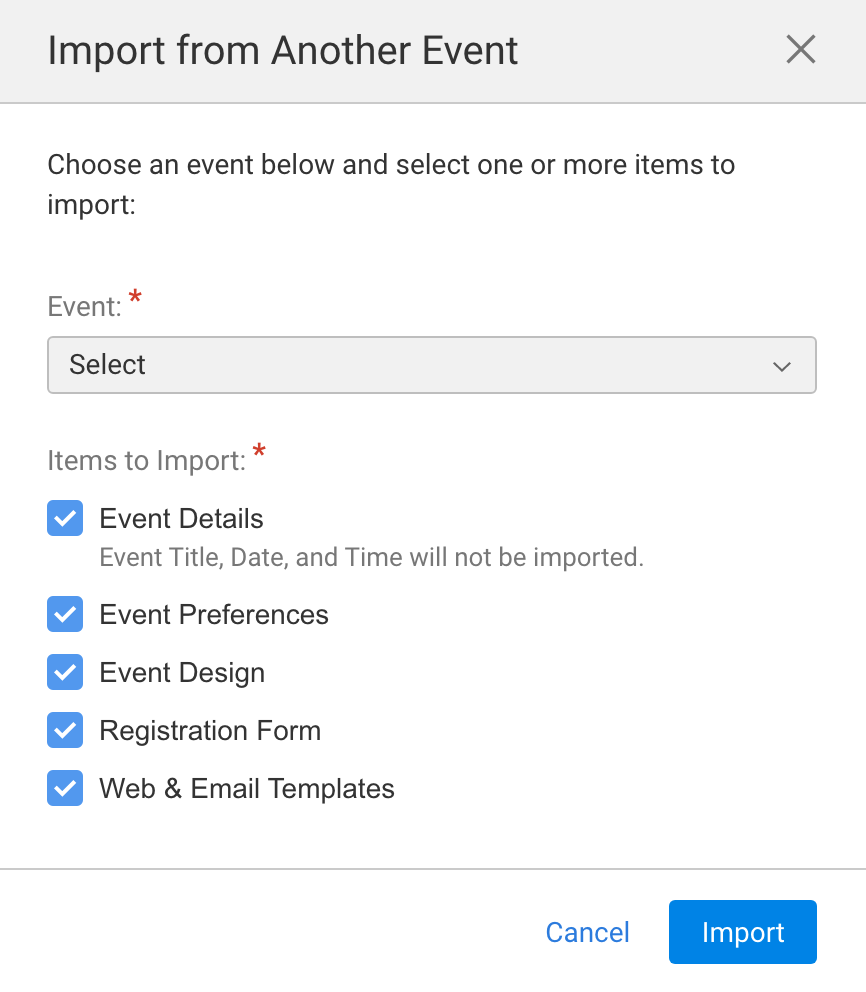
Choose the event you want to copy from in the pulldown and then choose:
Event Details - Event Title, Date, and Time will not be imported.
Event Preferences - Import the settings from your past event.
Event Design - Imports the style, color, font, and banner from the event chosen in the list
Registration Form - Copies the registration form from a previous event. Remember, if your past event has customizations on it, we recommend that you contact support to make changes and to check your new registration form to make sure that it's working properly.
Web & Email Templates - Imports all the other Web & Email Templates (excluding the Registration Form) from the event that you chose in the list. Most Web & Email Templates aren't customized, so you can use the default ones from year to year; however, if you know that you've customized them in the past, importing the Web & Email Templates can save you a lot of time.