

To upgrade your subscription, you can follow these steps:
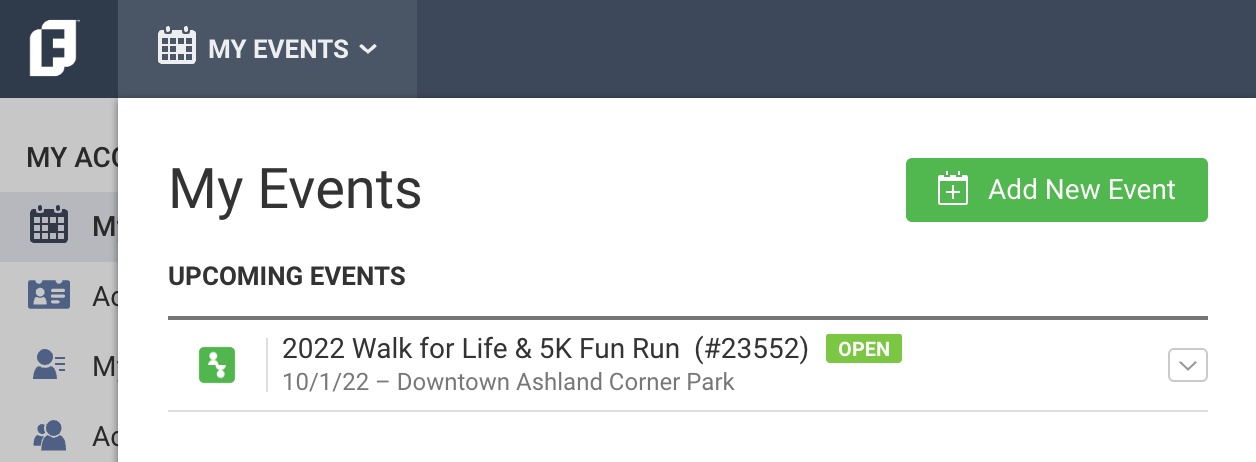
When logged into your FundEasy account, click the My Events dropdown in the top left corner, and click the green “Add New Event” button.
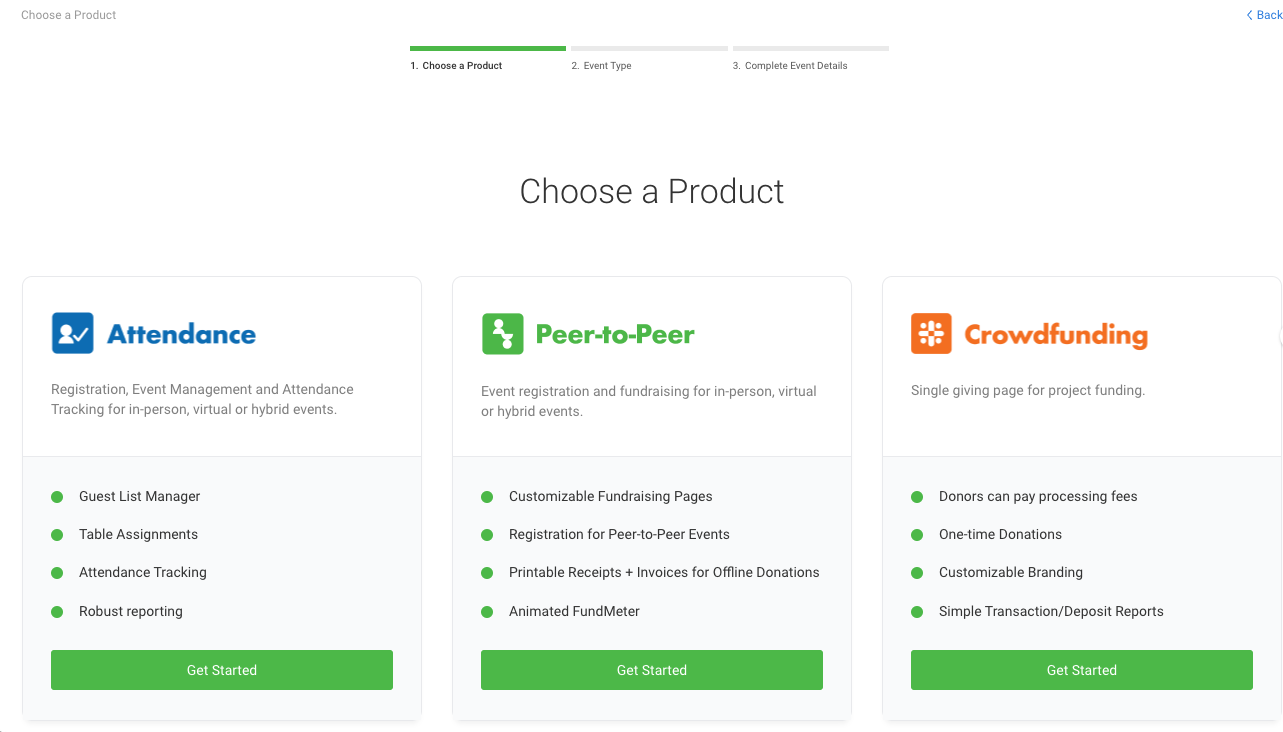
Depending on your current subscription, adding either a new Attendance or Peer-to-Peer event (as shown below) will upgrade it for you.
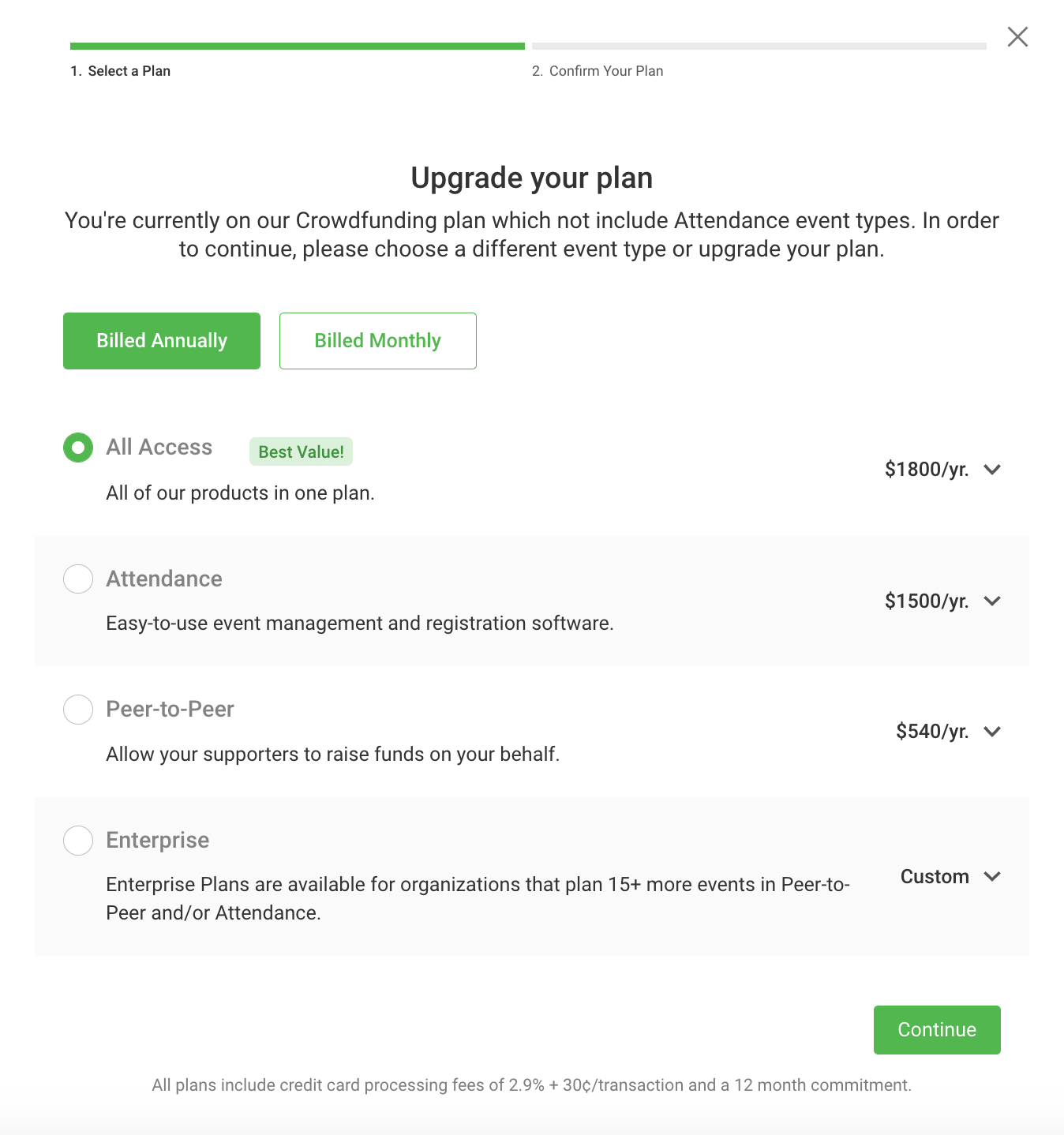
Once you've chosen to add either an Attendance or Peer-to-Peer event, then you can pick the plan that best suits your organization's needs. Depending on your current subscription, you can choose from All Access, Attendance, Peer-to-Peer, and Enterprise plans. You can choose to be billed annually or monthly (prices will display accordingly).
For example, if you are currently on a Crowdfunding subscription and would like to add an Attendance event, you'll be prompted to upgrade your plan, as shown below.
Once you've chosen your subscription plan and the billing frequency, you can click the green "Continue" button.
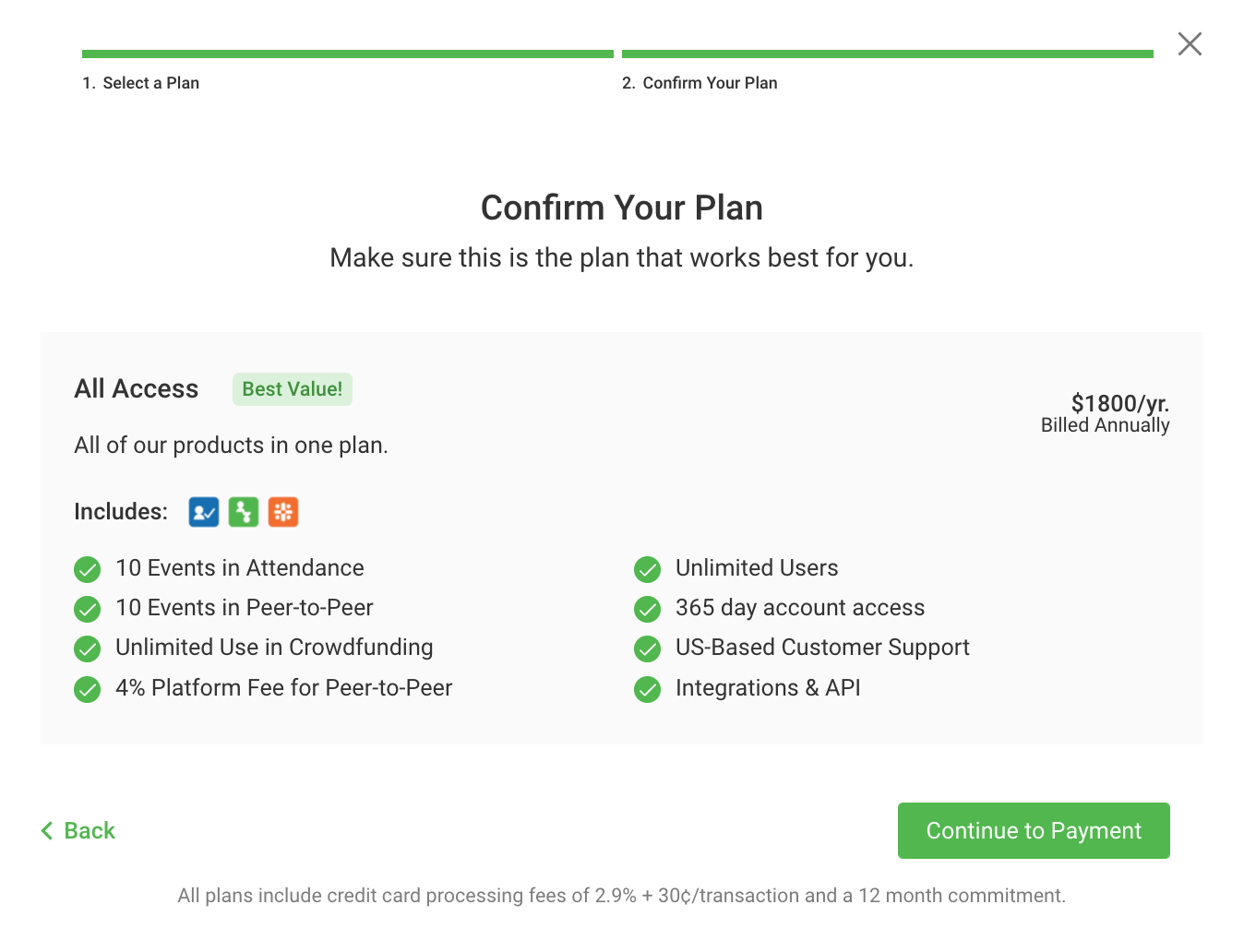
Confirm your plan and click the green "Continue to Payment" button.
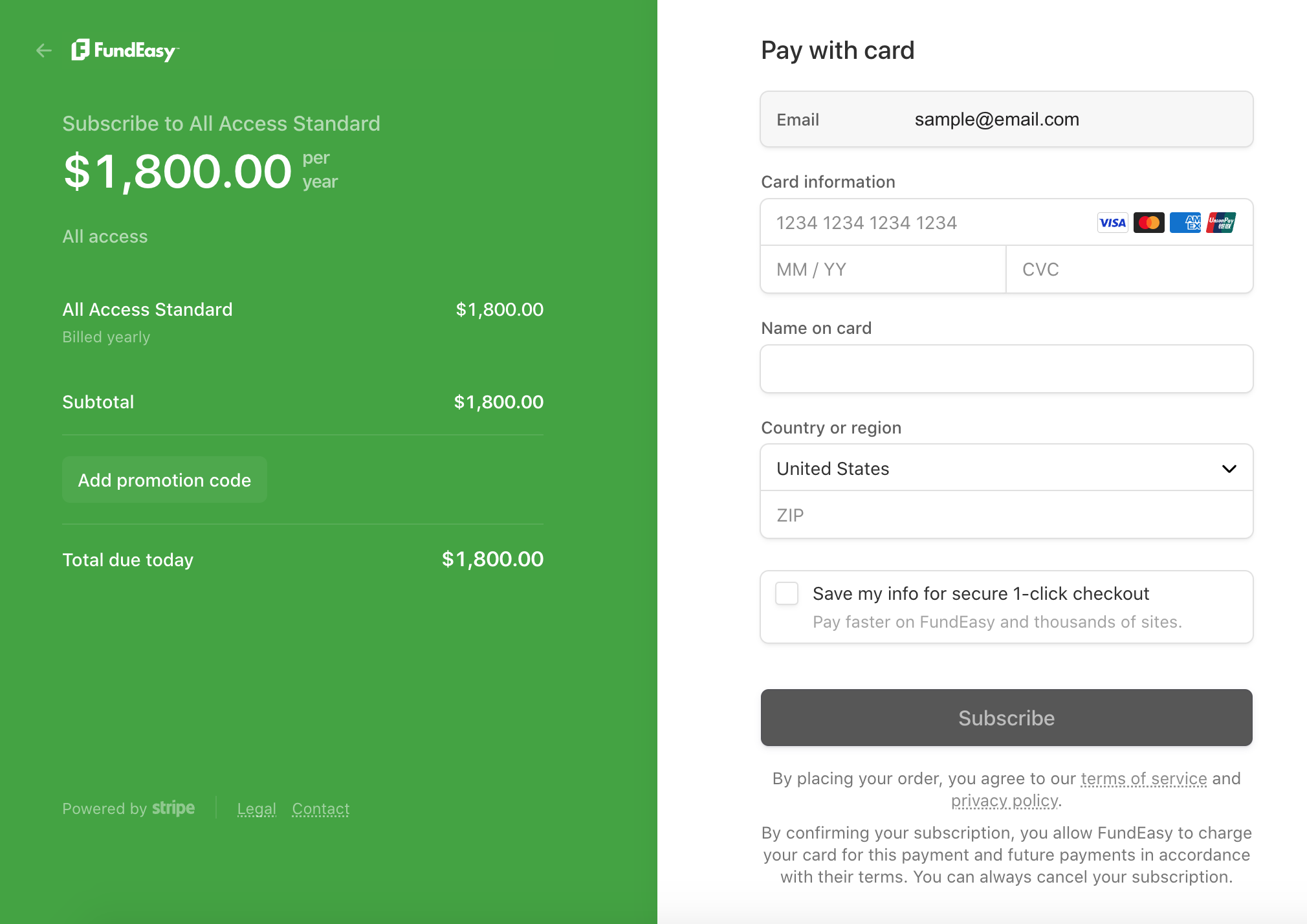
Fill in the payment information and click Subscribe.
Once you've subscribed, you'll be brought back to your home page in FundEasy. You can click the green "Add New Event" button again to create the Attendance or Peer-to-Peer event that is now included in your upgraded subscription!