To add or update the credit card on file for billing, follow these steps:
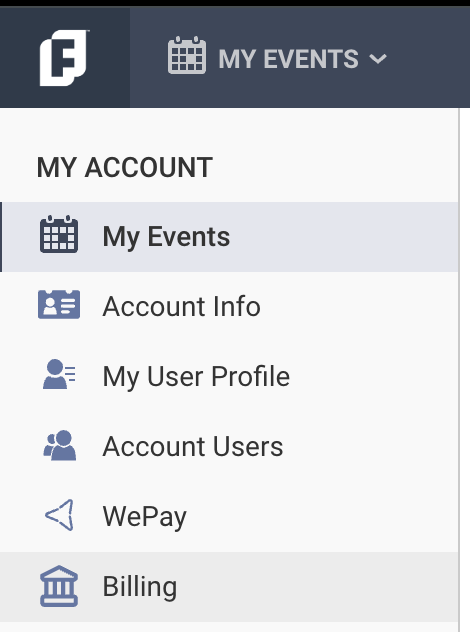
Click the FundEasy logo in the top left corner of your account.

Click the Billing tab from the left side column.
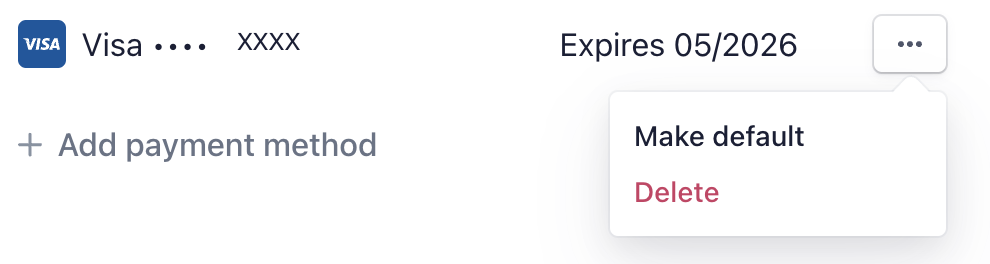
Click the +Add Payment Method link on the billing screen that opens to add a new payment method. (It can be the same credit card number as a previous payment method, but can include the new expiration date if you're trying to update an expired card.)
Click the ellipse (...) to the right of the expiration date, and choose to make that new payment method the default method.
Click delete to remove old payment methods.