

Once your event is set up, you should post a link on your website so people can register online. On print information, direct them to your own website where they can click the link to your event. You can find the link to your event web page by clicking the Promote icon

near the bottom of the Event Tools Menu or on your Event Dashboard

.
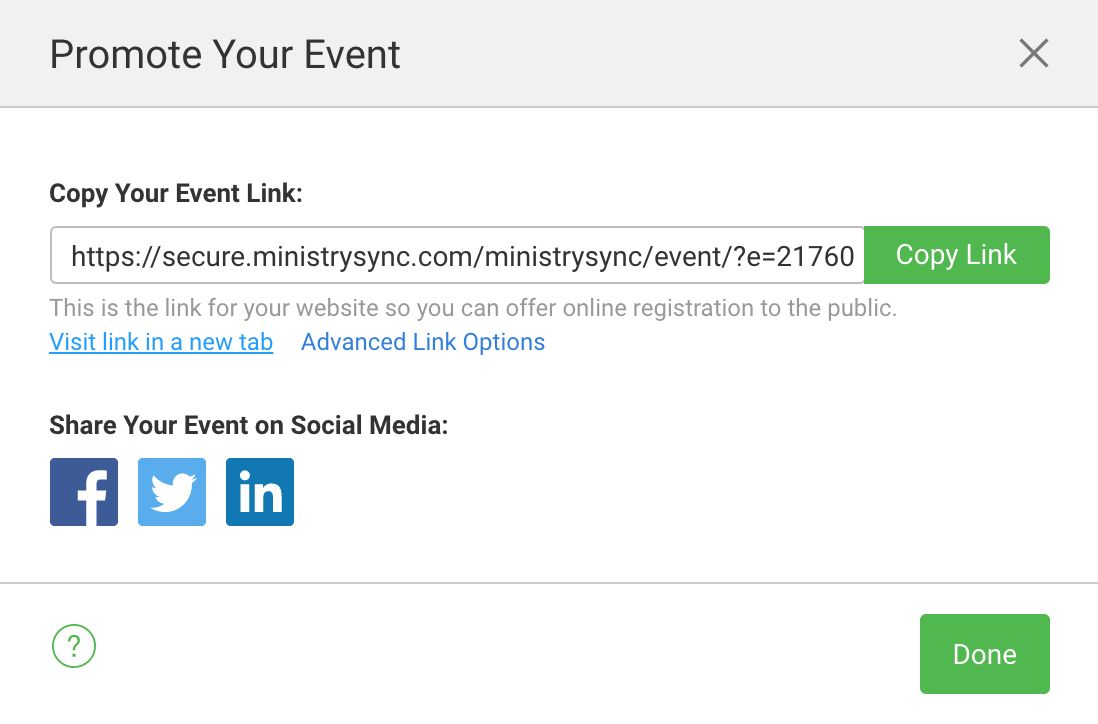
From the Promote Your Event section, you can:
Click Copy Link to copy the link to your event to your clipboard
Visit your Event Web Page in a new tab
Share your Event Web Page on your Facebook, Twitter, or Linked In.
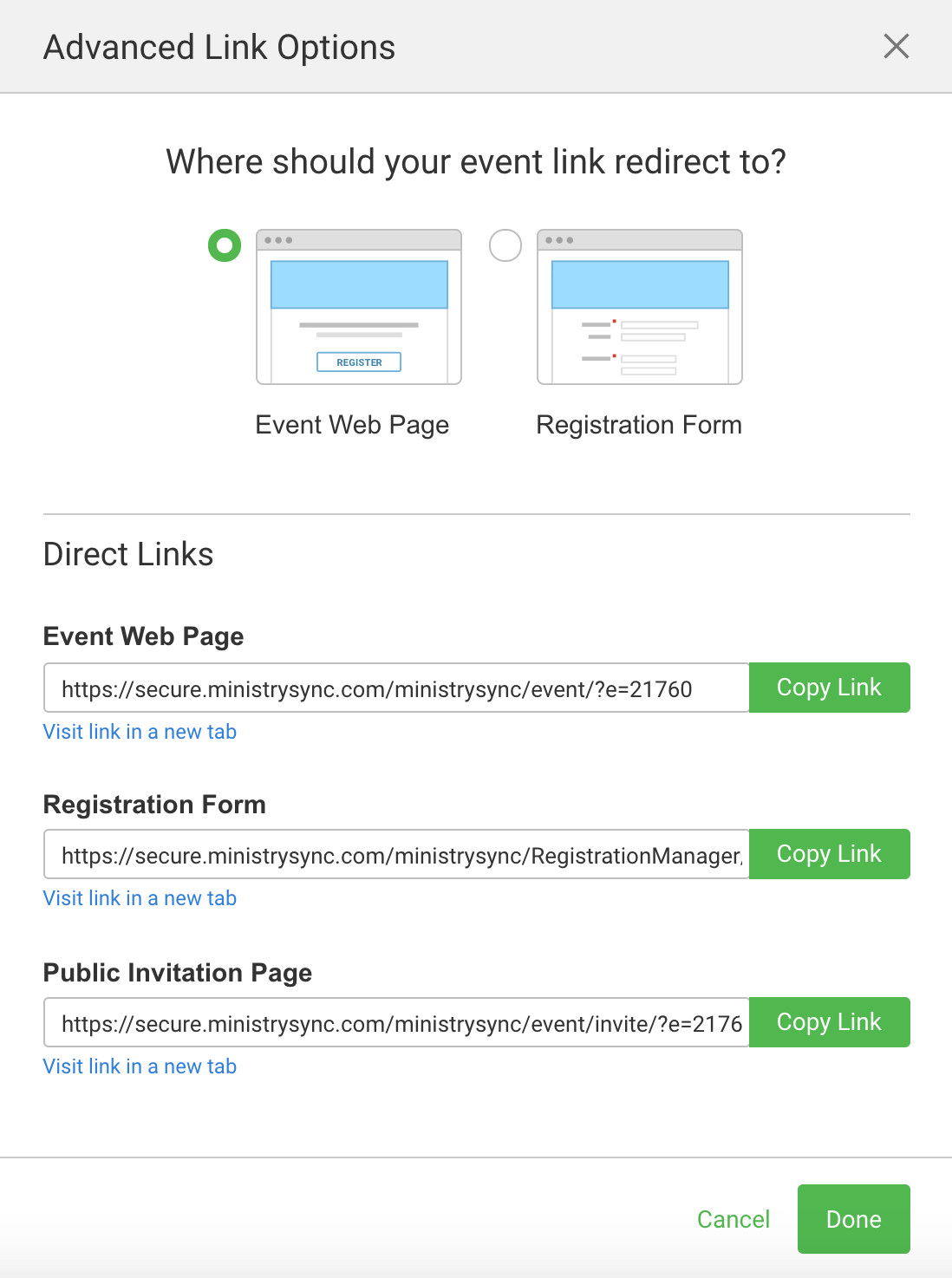
Under Advanced Link Options, you can:
Redirect your event link directly to the Event Web Page or the Registration form.
Copy the links for the Event Web Page, Registration Form, and Public Invitation Page.
We don't have a website. What now?
We recommend for customers who do not have a website to purchase a domain, then to frame forward to the event-specific URL we provide. A site we recommend for purchasing the URL is www.name.com. Domains from this site generally start at $8.00.
You will be forwarding to the URL provided by FundEasy as your Event Webpage. Choosing the option to mask the URL keeps the domain name in the URL and redirects to your event page. However, *masking the URL may cause registration issues with some browsers. We recommend that you do not mask the URL. These settings can be configured from your domain control panel. No matter what domain you use, make sure to use https and not http or it will not redirect correctly.
*Note: Safari browsers do not accept 3rd party cookies by default. If you're masking the URL for your purchased domain, it may prevent payment forms from submitting for iOS devices. Make sure your Registration Form shows the ministrysync.com URL to work around Safari's default settings.