

New! A Donation Widget is now available in Crowdfunding campaigns!
This feature is brand new, and has many planned improvements. There are currently a few FAQ's you'll want to note as you use the first iteration of this giving platform:
How does this work? When published, the widget replaces the donation page where the donation information is collected when donors give via your Crowdfunding campaign. So when donors click the Donate button on your Campaign Web Page, it will open a new giving widget instead of going to the old donation page. Note: since the widget is now integrated with Crowdfunding campaigns, you'll need to publish the widget as part of the setup process when creating a Crowdfunding campaign.
Can I embed this widget on my website? Yes! This widget can be used independently. Meaning, it can be linked to right from your website, embedded on your website, or used in kiosk mode for easy giving at an event!
Where's the fundmeter? The fundmeter is still on your Crowdfunding Campaign Web Page. When a donor clicks the Donate button on the Campaign Web Page, completes their donation, and closes the widget, the Campaign Web Page will reload and the fundmeter will update. Donors will not see the fundmeter if accessing the widget through an embedded view or in the kiosk mode.
Didn't I already do some of this setup? Although the widget is available within Crowdfunding, it does not necessarily adopt the formatting of your campaign as some of the settings pertain to the campaign web page and some pertain to the widget. You'll be asked in the steps below to set things like color, banner images, wording, etc. Even though you've done many of these things when setting up your Crowdfunding Campaign for the main campaign web page, you will need to select them again in the steps below for the widget.
Can donors give recurring gifts? Not yet. But that is a planned improvement! Stay tuned...
Is there a platform fee? There isn't! The widget allows us to forgo the Platform Fee that Peer-to-Peer events/campaigns have so only the processing fee of 2.9% + $0.30/transaction applies - and you can offer for donors to cover this fee. Please note that Stripe's fees for American Express may vary from our advertised fee structure. To verify this rate or to request to disallow American Express in your account, please contact Stripe. Rates that deviate from our advertised fee structure will result in reporting discrepancies.
Does this mean the link to my giving page will change? If you've already promoted the link to your Campaign Web Page, that link will still work. The only thing that will change is the page that opens when a donor clicks the Donate button on your Campaign Web Page. Once you publish the widget, the Donate button on your Campaign Web Page will open the new giving widget instead of going to the old donation page.
Do I have to use the widget in my Crowdfunding campaign? Yes and no. All Crowdfunding campaigns now utilize the widget settings for online giving. That means that you'll need to set up the Donation Widget in order to fully customize your giving options and avoid the platform fee that was associated with older Crowdfunding campaigns. However, you can choose which giving modes you'd like to use. By default, publishing the widget simply adds the Give button to your main campaign webpage. It's optional to use the new widget modes including kiosk mode, the embedded button and the embedded widget.
Ready to get started? Awesome! Follow these instructions to set up the Donation Widget for your campaign.
To get started, click the Donation Widget tool in the left side panel.
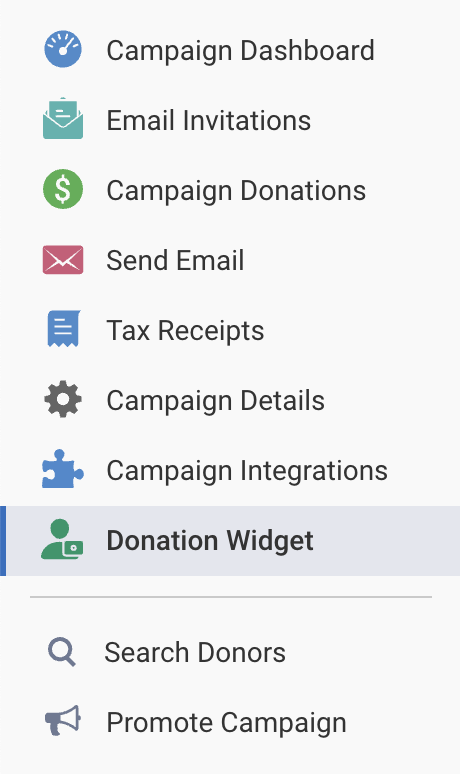
Fun Fact: As you set up the Donation Widget, the information you enter in the Widget Setup column will be displayed in the column on the right!
Basic Info
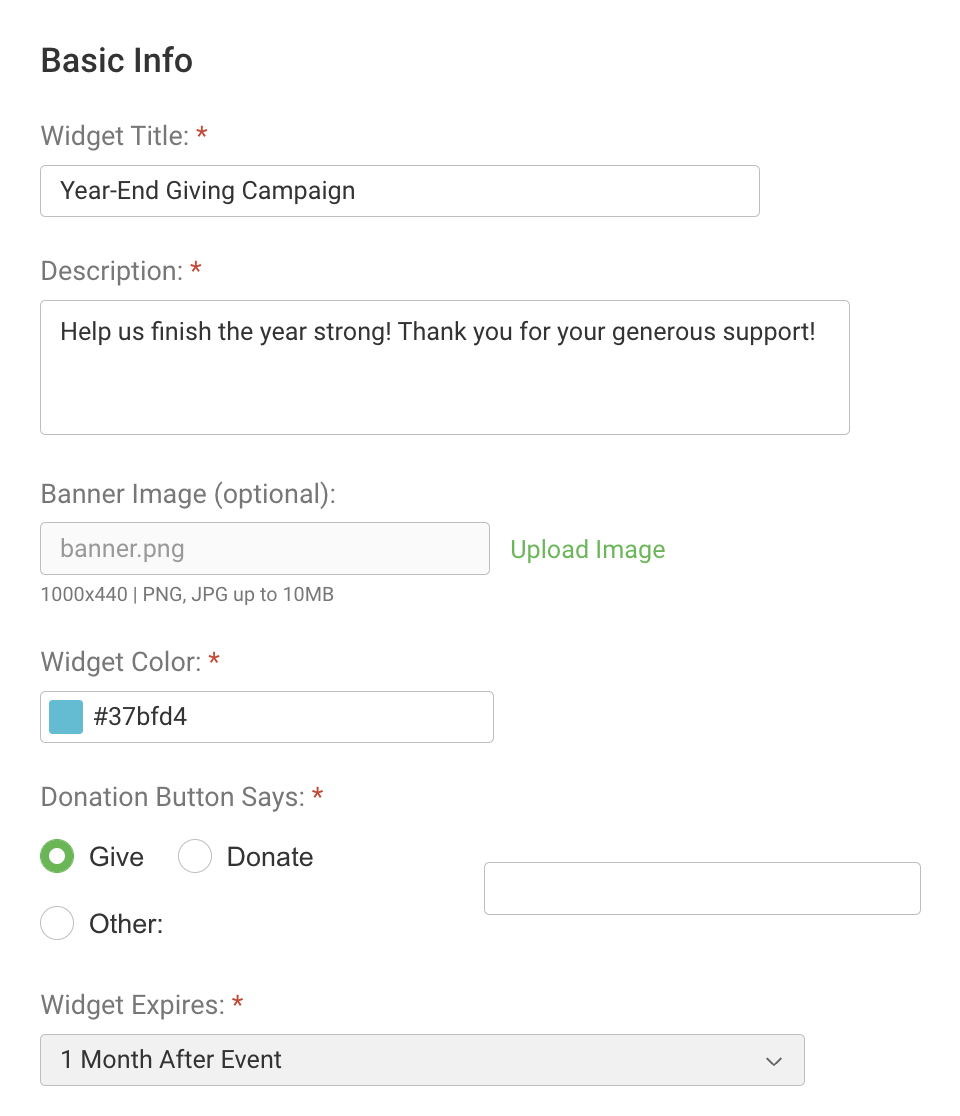
In the Basic Info section, fill out a Widget Title and Description.
Under Banner Image, click the Upload Image link if you'd like to include a banner image (optional).
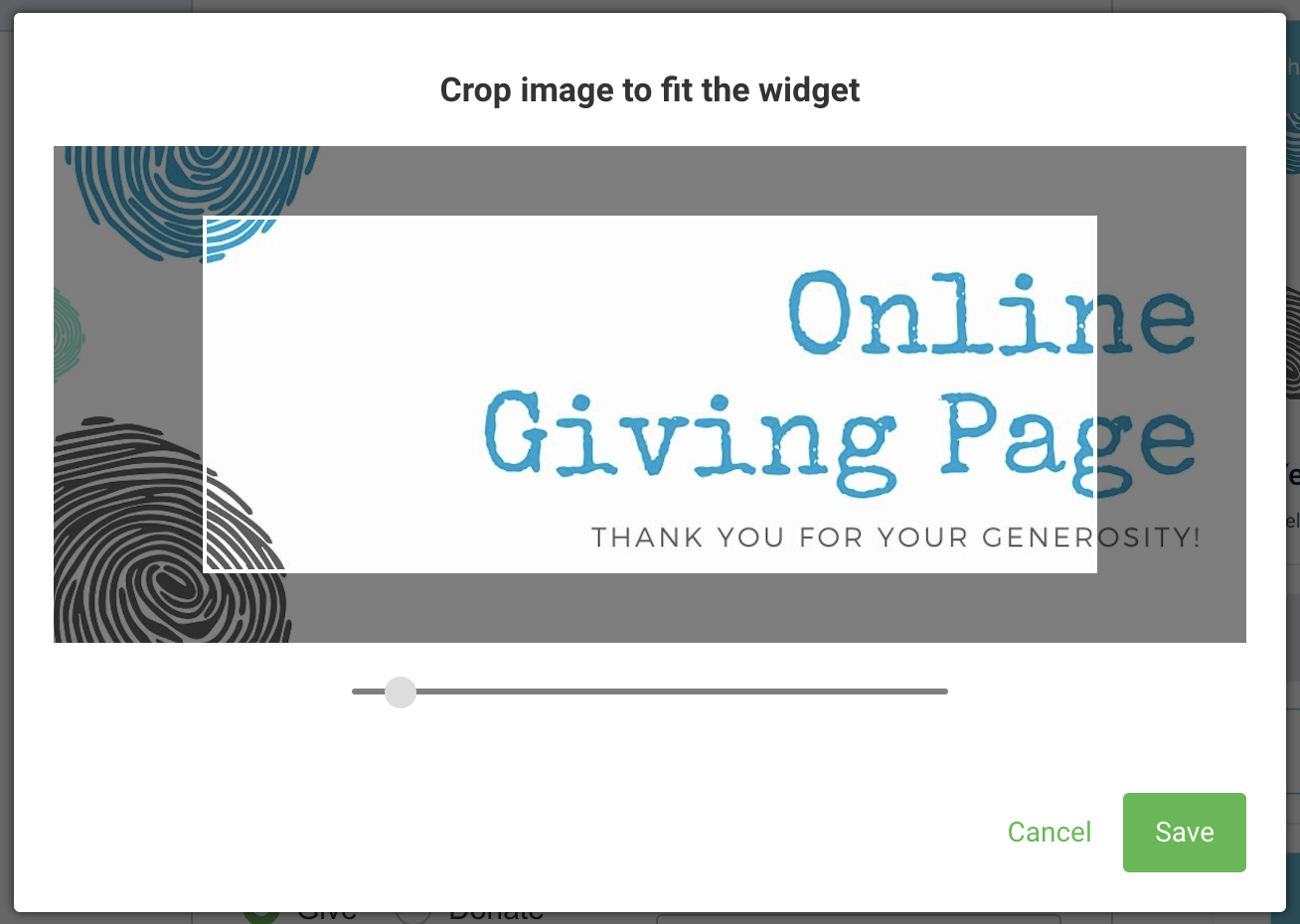
When you choose an image to upload, you'll be able to crop the image to the required dimensions (1000px x 440px) using the slider tool.
Allowed file types and sizes: PNG and JPG, up to 10MB
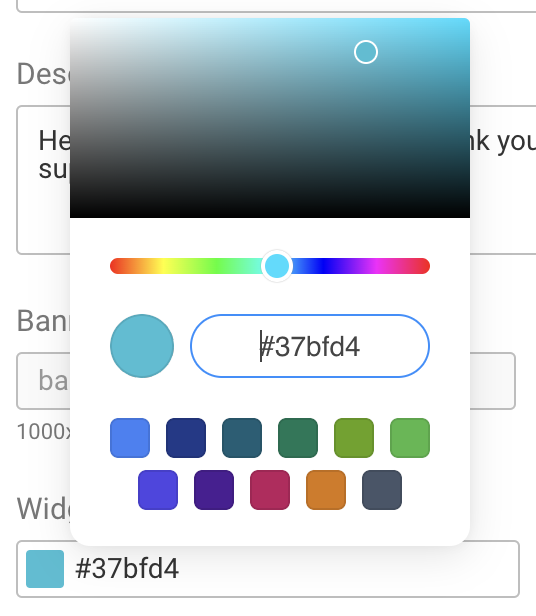
Under Widget Color, click the color square or color hex code if you'd like to change the widget color.
Under Donation Button Says, choose an option for the Give Button wording.
Under Widget Expires, choose when the widget will no longer be available for donations.
Donation Settings
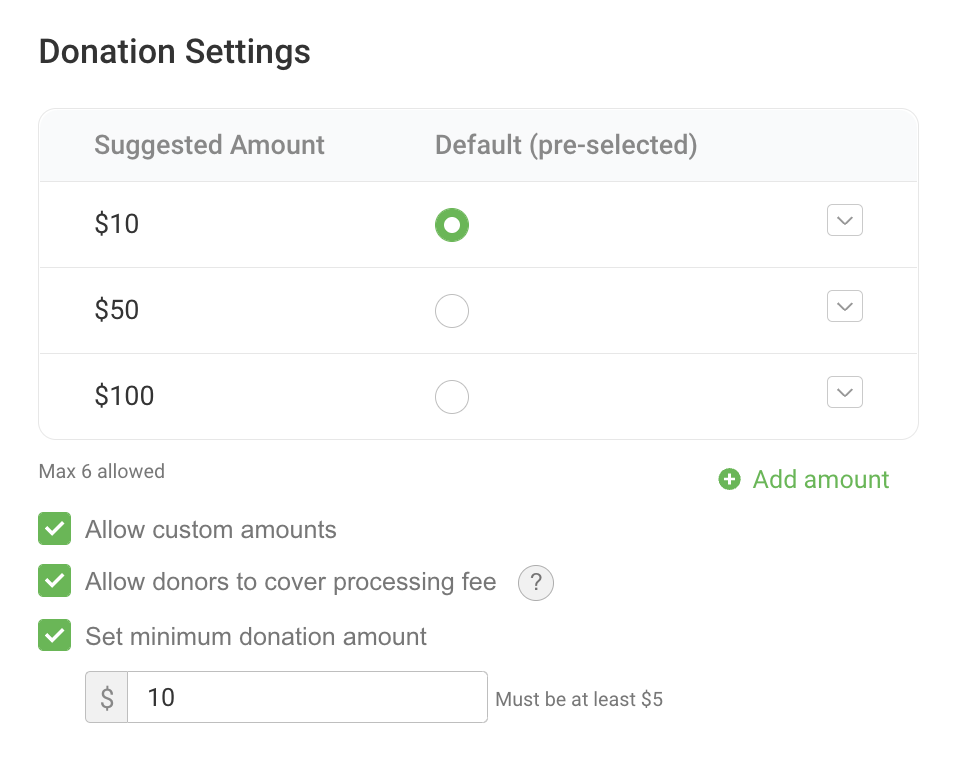
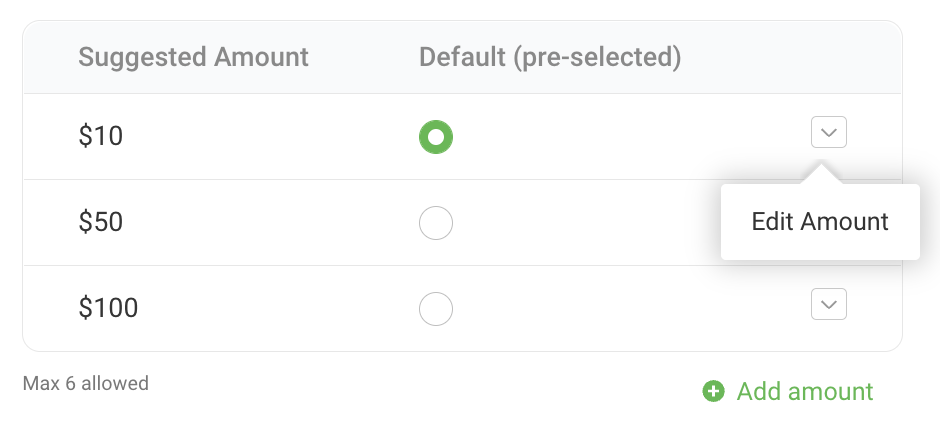
If desired, add and/or edit the suggested donation amounts and choose which amount will be pre-selected in the widget by default.
Choose whether to allow custom amounts, whether to allow donors to cover the processing fee, whether to set a minimum donation amount and, if so, what the minimum donation amount should be.
Donor Details
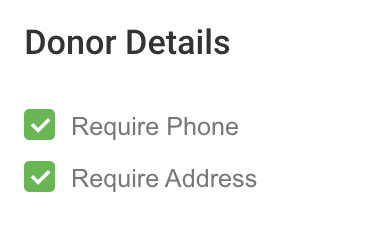
The name and email address are required fields when making a donation. You can also require phone number and mailing address.
Payment Processor
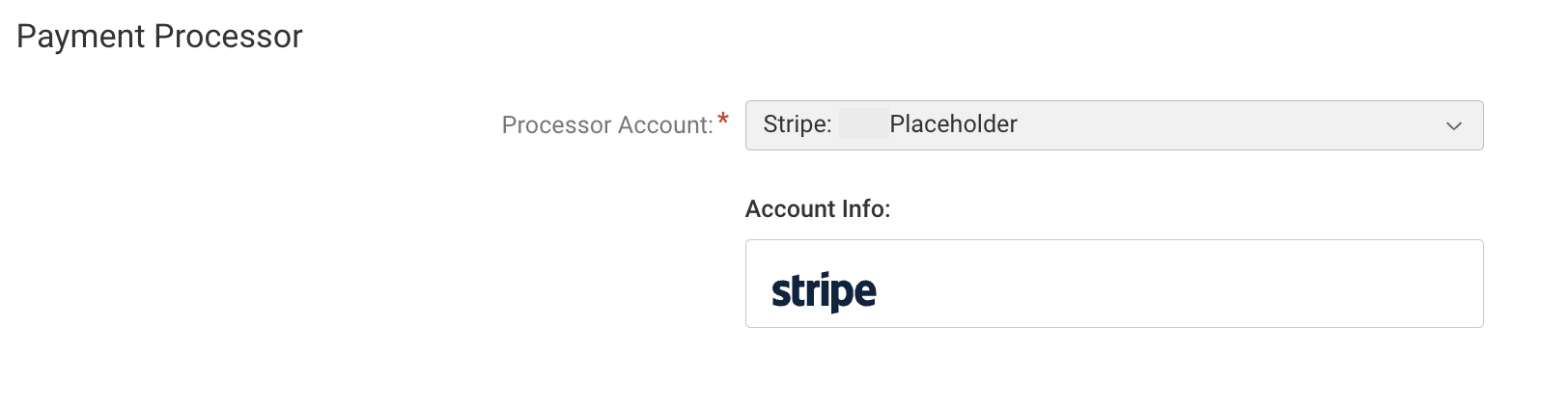
Choose the account the widget will use to process payments.
Publish & Use
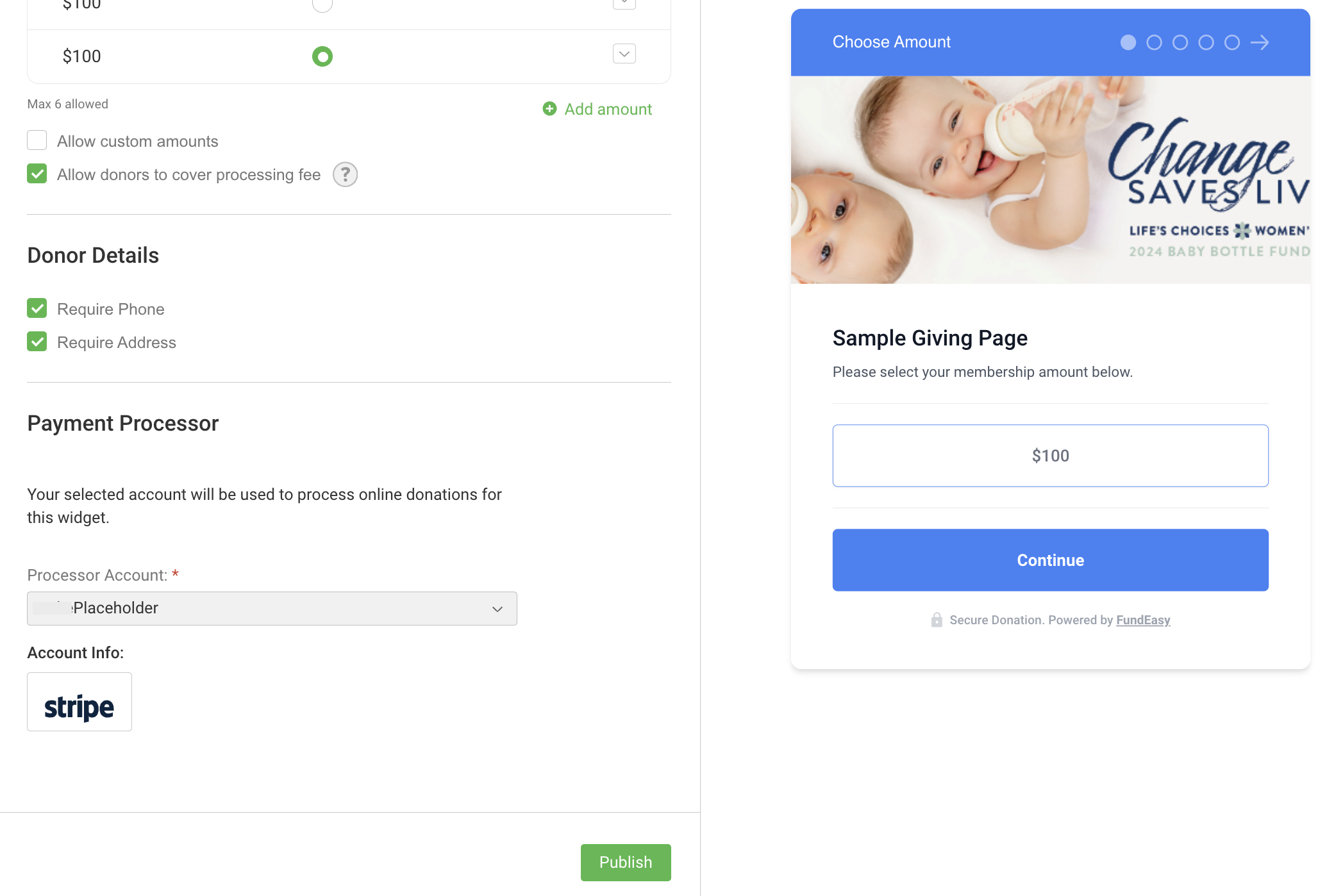
Review the widget in the display column on the right.
Click the green Publish button when you're ready to go live!
Once the widget is published, click the Use Widget button toward the bottom left. This will show you options for how you can use the widget in the ways that are best for you!
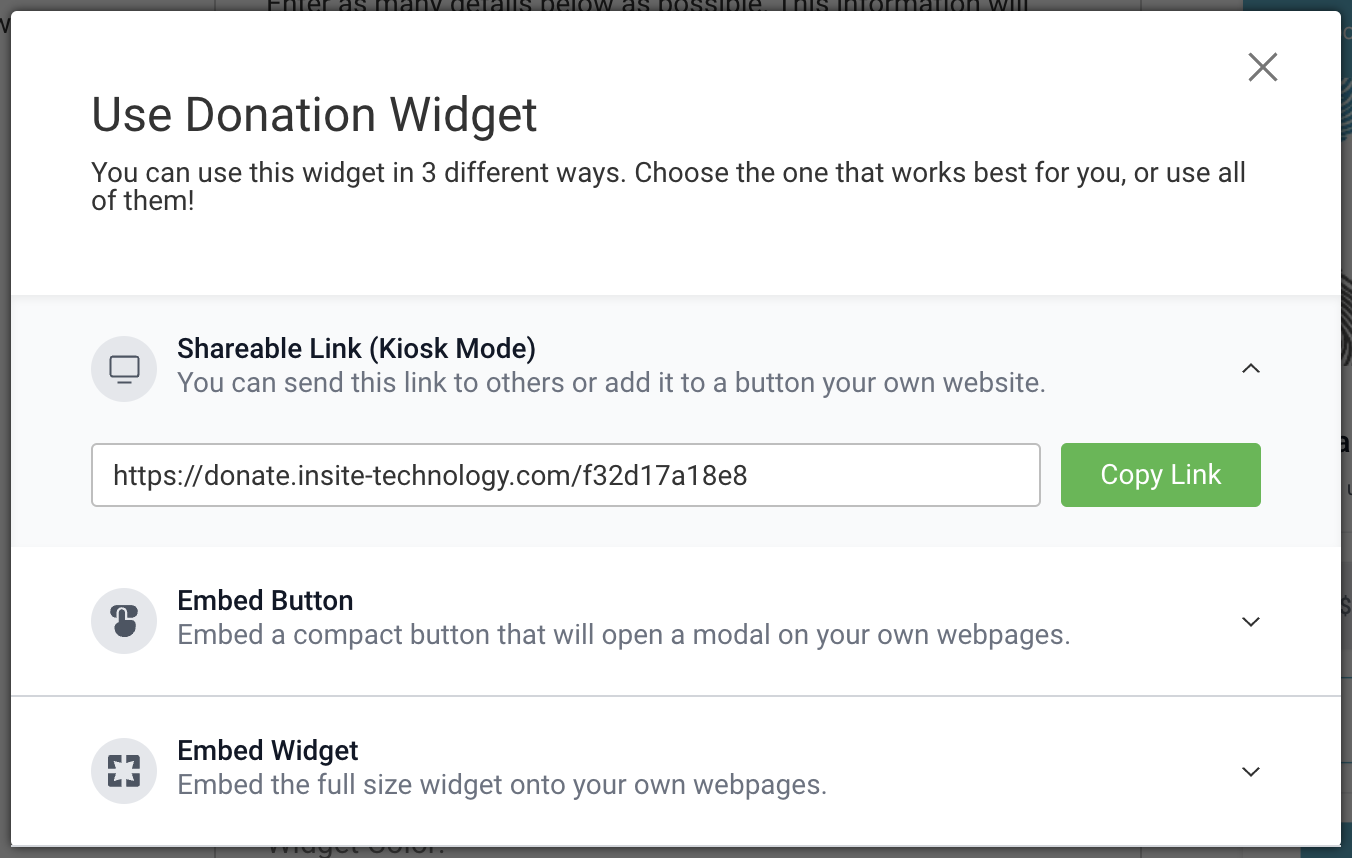
Your Campaign Web Page includes a button to give, and this button will open the Donation Widget. (To view your Campaign Web page, click the Promote Event button in the bottom left corner of your event and then click the green link that says "View link in a new tab.")
Donation Widget Overview Video
(Read video transcript here.)