

Add your Event (Corporate) Sponsors' logos on every Event Web Page and confirmation email, as well as on every participant fundraising page in Peer-to-Peer. We keep track of the data on clicks (if the Sponsor's website is included) and impressions in your Event Summary report so you can show your Event Sponsors how they're receiving a solid return on their investment. You can also include your Event Sponsors' giving in the fundraising total in Peer-to-Peer.
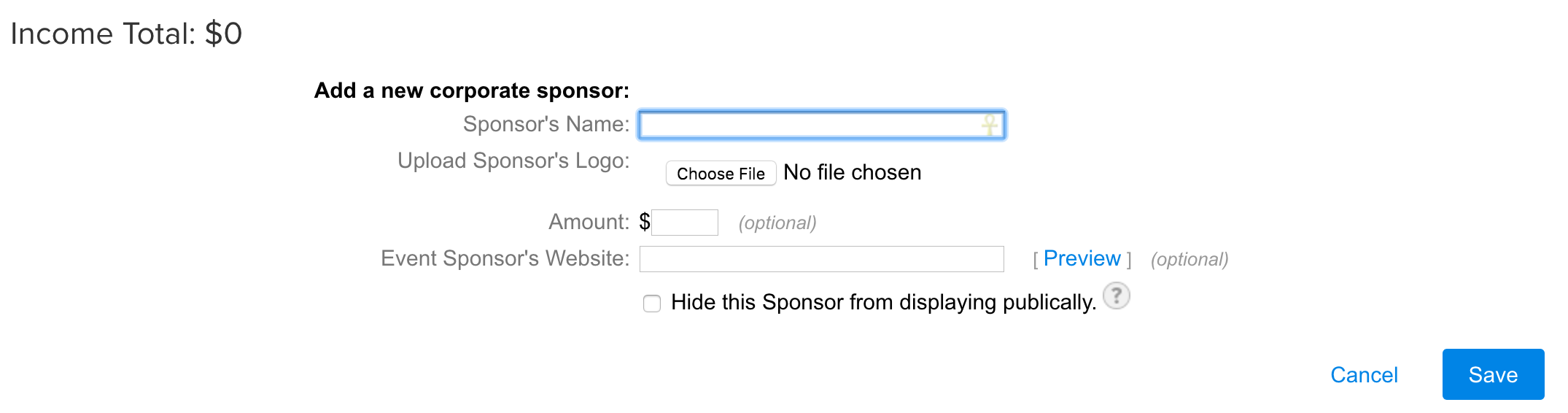
Choose Event Sponsors in the Event Tools menu on the left and then click Add Event Sponsor.
Add the Sponsor's name.
Upload their logo. Here are a few tips:
Please be sure the logo is not a transparent image, otherwise it will have a black background.
An Event Sponsor can be added without a logo, but the Sponsor will not appear on web pages/emails. To add a Sponsor without uploading a logo, you'll need to check the box that says, "Hide this Sponsor from displaying publically."
If your Sponsor doesn't have a logo, but you'd like the Sponsor to appear on web pages/emails, you can create a logo using any image editing software.
If desired, you can add the Event Sponsor's sponsorship amount. This amount does not appear on webpages or emails.
If desired, you can add the Event Sponsor's website (optional). This allows FundEasy to track the clicks your Event Sponsors receive.
Event Sponsor logos can be dragged to reposition their order. We do not have tiers or levels at this time.
Editing Event Sponsors
Choose Event Sponsors in the Event Tools menu on the left.
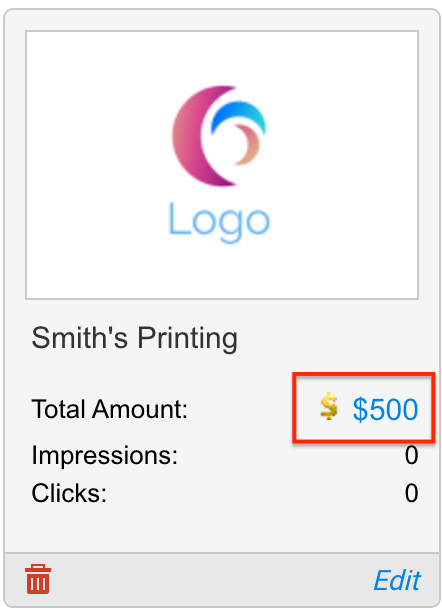
To edit a transaction, click the dollar amount or the payment icon above the edit icon.
To edit the name or logo, click the Edit link in the bottom right corner of an Event Sponsor.
If necessary, scroll up the page to find the section to edit.
You can edit the name, URL, and logo. You can also hide the sponsor from the website.
Edit an Event Sponsor Transaction
You can edit, delete, pay, or add to an event sponsor transaction by clicking the payment icon or dollar amount in the Event Sponsor card.
Once the Profile Transaction window opens, you have these options:
View the transaction
Mark the sponsorship as paid
Refund a paid sponsorship. Please note: Refunding payments requires two steps - one in Stripe and one in FundEasy. Returning the money needs to be done from within your Stripe account. Once you have refunded the payment in Stripe using these instructions, use the following steps to mark it as Refunded in FundEasy. The refund does not go to the customer until it is completed in Stripe.
Delete a transaction with the trashcan icon. Note: this does not refund the transaction.
Add a New Transaction.
Add Event Sponsor gifts to your Peer-to-Peer event total
If you'd like to include your Event Sponsors in your Peer-to-Peer event total, you can do that from Event Setup > Peer-to-Peer Preferences.
Go to Event Setup in the Event Tools menu
Click Peer-to-Peer Preferences
Scroll to the Event Web Page Settings section
Click the checkbox to include event sponsorships in total amount raised. Event Sponsor sponsorship amounts do not appear on webpages or emails.
Peer-to-Peer/Attendance Training Video: Event Sponsors
(Read video transcript here.)